
Insights Dashboard
Getting Started with Insights Dashboard
To go to Insights Dashboard to your Smartflo account, first log in using your unique User ID and Password. Once logged in, you will be directed to the main dashboard. From there, locate the navigation menu on the left-hand side of the screen and click on "Insights".
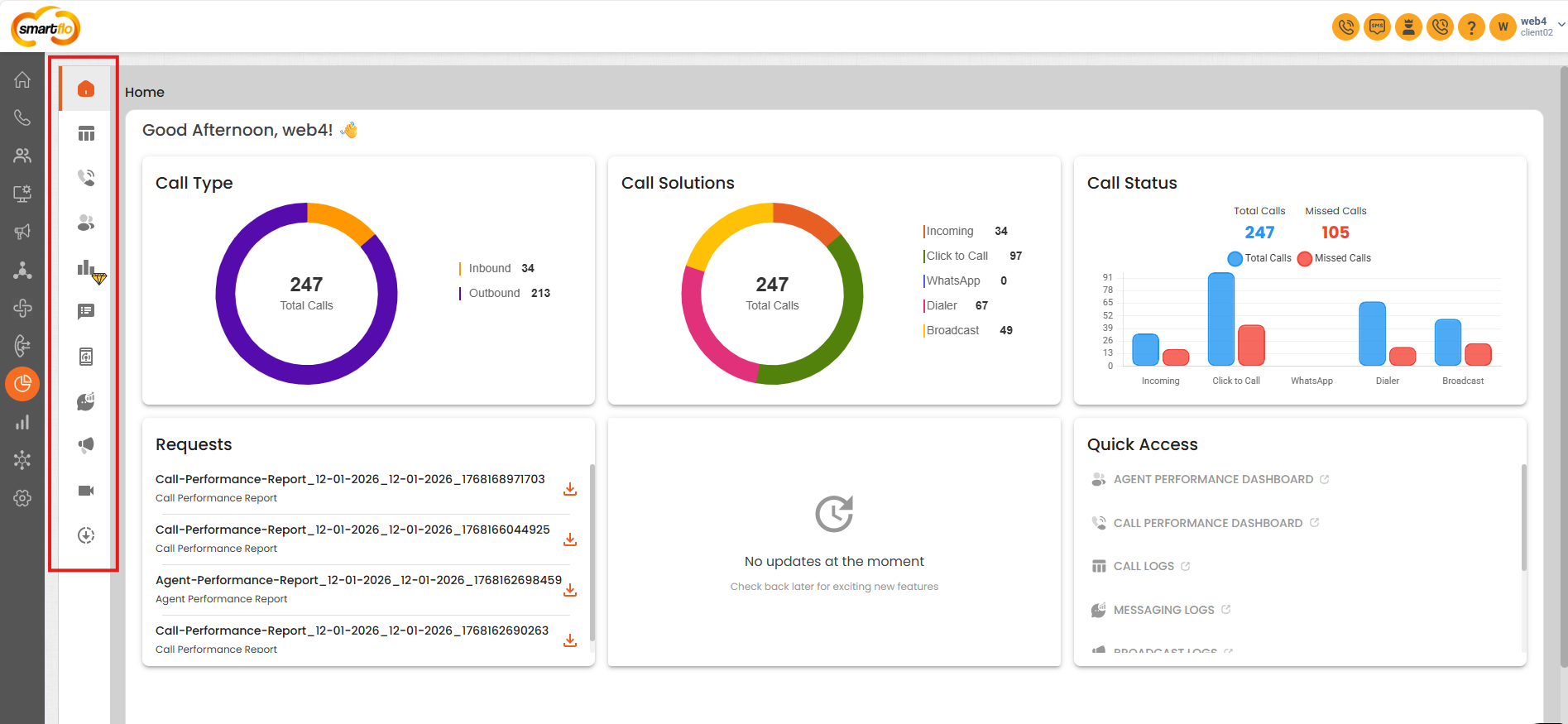
Below is the explanation of its main components:
1. Call Type
This section provides a high-level breakdown of calls based on their direction:
-
Inbound Calls
Represents calls received by agents from customers. -
Outbound Calls
Represents calls initiated by agents to customers.
The circular chart visually displays the proportion of inbound vs outbound calls along with the total call count, enabling a quick assessment of call traffic distribution.
2. Call Solutions
This section categorizes calls based on the solution or channel through which they were handled:
- Incoming – Direct incoming calls
- Click to Call – Calls initiated via click-to-call actions
- WhatsApp – Calls originating from WhatsApp (if enabled)
- Dialer – Calls made using the dialer
- Broadcast – Calls generated through broadcast campaigns
The donut chart shows the contribution of each solution to the total call volume, helping users understand which calling methods are most utilized.
3. Call Status
This section highlights call outcomes and effectiveness:
- Total Calls – Overall number of calls made or received
- Missed Calls – Calls that were not answered
The bar chart compares total calls vs missed calls across different call solutions, allowing teams to identify gaps, missed opportunities, or performance issues.
4. Requests
The Requests section displays recently generated and downloaded reports, such as:
- Call Performance Reports
- Historical or scheduled insights reports
This allows users to:
- Quickly access the latest reports
- Re-download reports without navigating to the reports module
5. Quick Access
The Quick Access section provides shortcuts to commonly used dashboards, such as:
- Agent Performance Dashboard
- Call Performance Dashboard
- Call Logs – Access detailed call records
- Messaging Logs – View message-level communication logs
- Broadcast Logs – Review broadcast campaign activity and logs
- Video Logs – Access video interaction records
- Disposition Dashboard – Analyze call outcomes and agent dispositions
These links enable faster navigation to detailed analytics without going through multiple menus.
Navigation
The navigation menu on the left allows users to switch between various modules. The highlighted icon in the red box represents the current section being viewed: Insights Dashboard.
This dashboard is designed for quick, at-a-glance insights, offering both visual summaries and easy navigation to detailed reports.
Updated 9 months ago