
Manage Remote Storage
Navigating to Manage AWS
- To view or configure AWS remote storage in the Smartflo portal, follow these steps:
- Log in to your Smartflo account.
- Navigate to Settings > Manage Settings > Manage AWS > Manage Remote Storage.
- You will be redirected to the Remote Storage (AWS) page, where you can view all configured AWS remote storage.
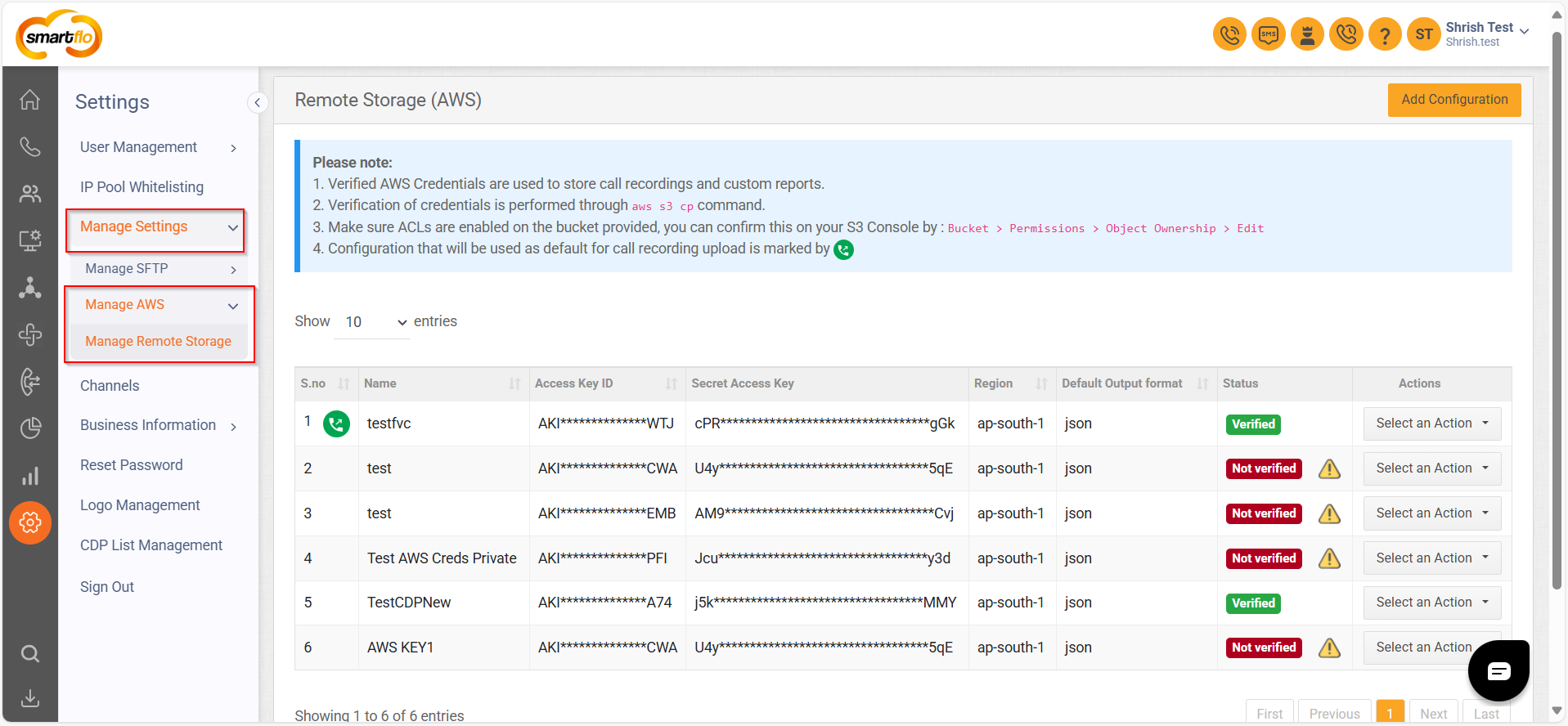
Remote Storage (AWS)
- On this page, you will see a table displaying the list of AWS remote storage configurations with the following fields:
| S. No | Name | Access Key ID | Secret Key ID | Region | Default Output Format | Status | Actions |
|---|---|---|---|---|---|---|---|
| 1 | AWS Storage 1 | AKIAxxxxxx | ********** | us-east-1 | JSON | Active | Edit/Delete |
| 2 | AWS Storage 2 | AKIAyyyyyy | ********** | us-west-2 | YAML | Inactive | Edit/Delete |
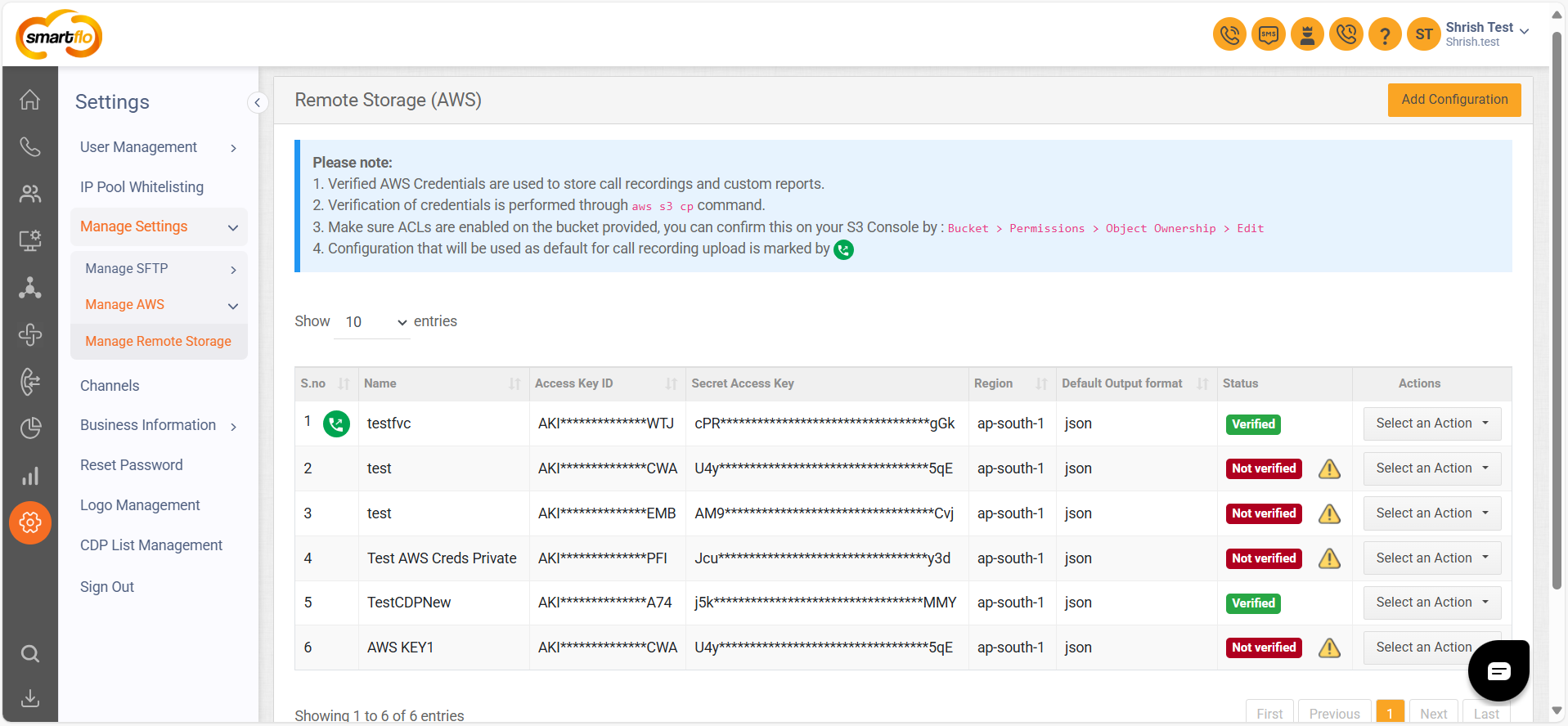
Adding a New Remote Storage (AWS)
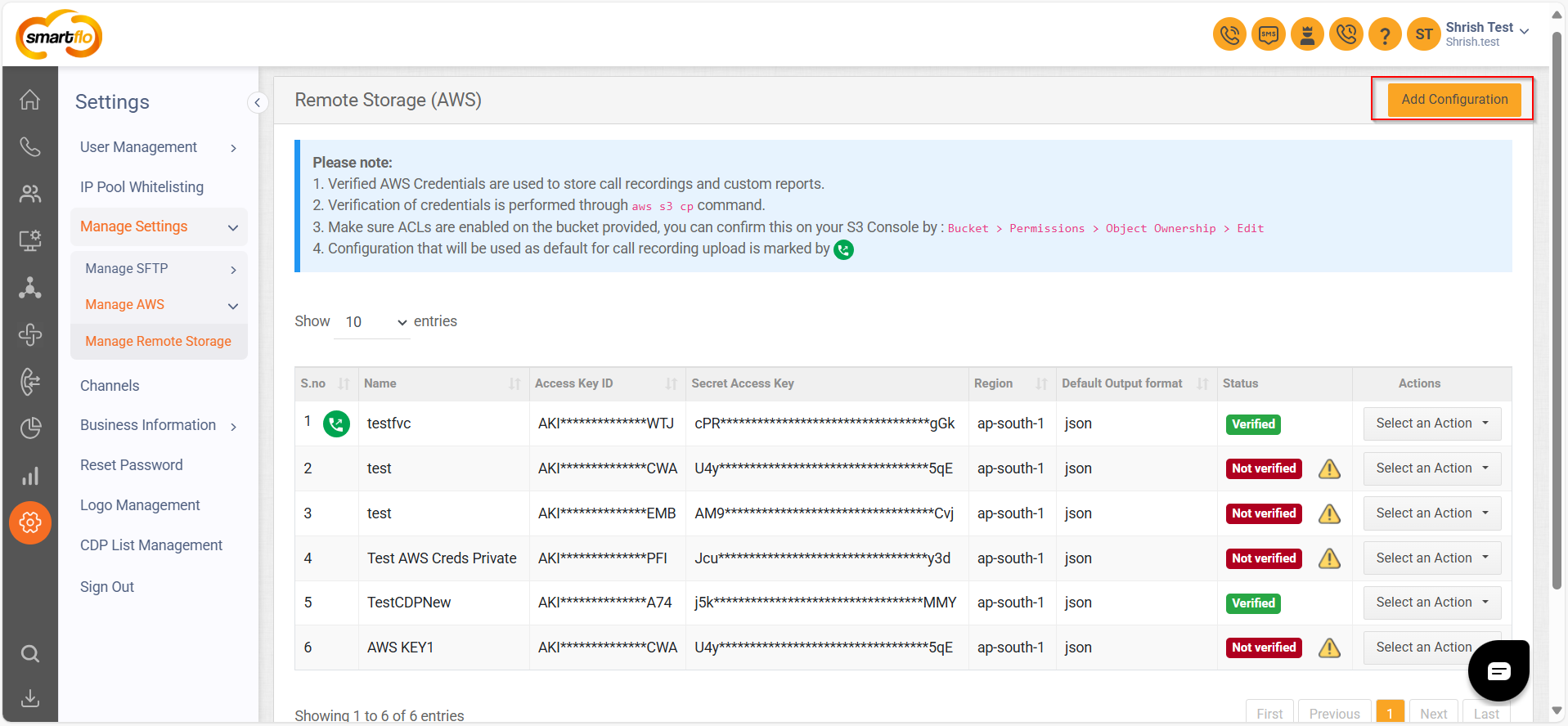
- To add a new AWS remote storage configuration:
- Click on Add Configuration.
- Fill in the following details:
| Field Name | Description |
|---|---|
| Name | Enter a unique name for the storage configuration. |
| Access Key ID | Enter your AWS access key ID. |
| Secret Access Key | Enter your AWS secret access key. |
| Region ID | Select the AWS region (e.g., us-east-1, us-west-2). |
| Default Output Format | Choose the output format: json, text, yaml, table, yaml-stream. |
| Use this configuration for | Select whether this storage is for Recordings or Custom Reports. |
| S3 Bucket Path for Recordings | Enter the S3 bucket path where recordings will be stored. Note - The folder path must not contain any spaces or special characters. |
| S3 Bucket Public URL for Recordings | Provide the public URL to access the recordings. Note - The folder path must not contain any spaces or special characters. |
The recording uploaded to AWS will be in .mp3 format.
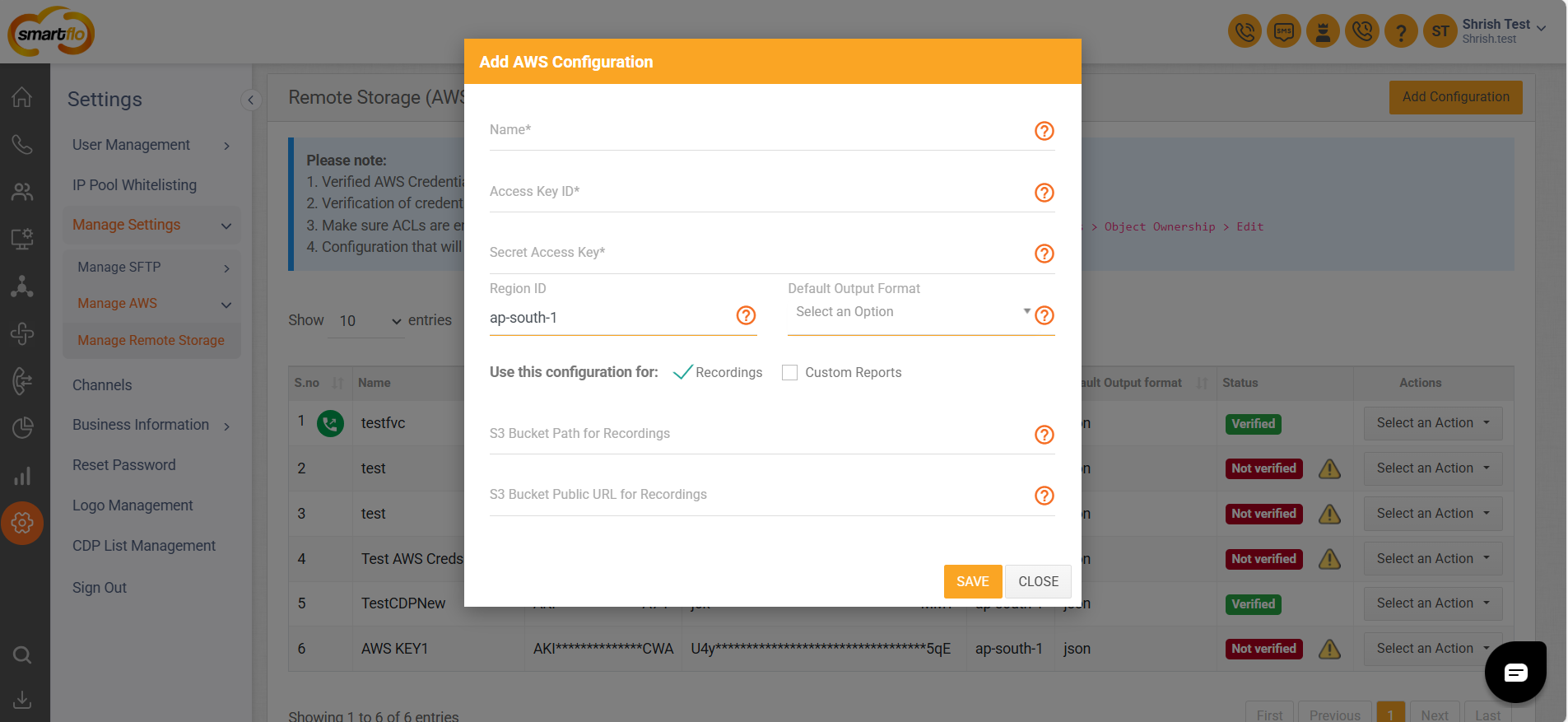
- Click Save to confirm the configuration or Cancel to discard.
Note:
- Verified AWS Credentials are used to store call recordings and custom reports.
- Verification of credentials is performed through aws s3 cp command.
- Make sure ACLs are enabled on the bucket provided, you can confirm this on your S3 Console by : Bucket > Permissions > Object Ownership > Edit
- Configuration that will be used as default for call recording upload is marked by
This setup allows you to securely store and manage call recordings or reports on AWS remote storage.
Updated 11 months ago