
Installation & Setup
🌐 Chrome Extension
Follow these steps to get started with the Smartflo Softphone Chrome Extension app:
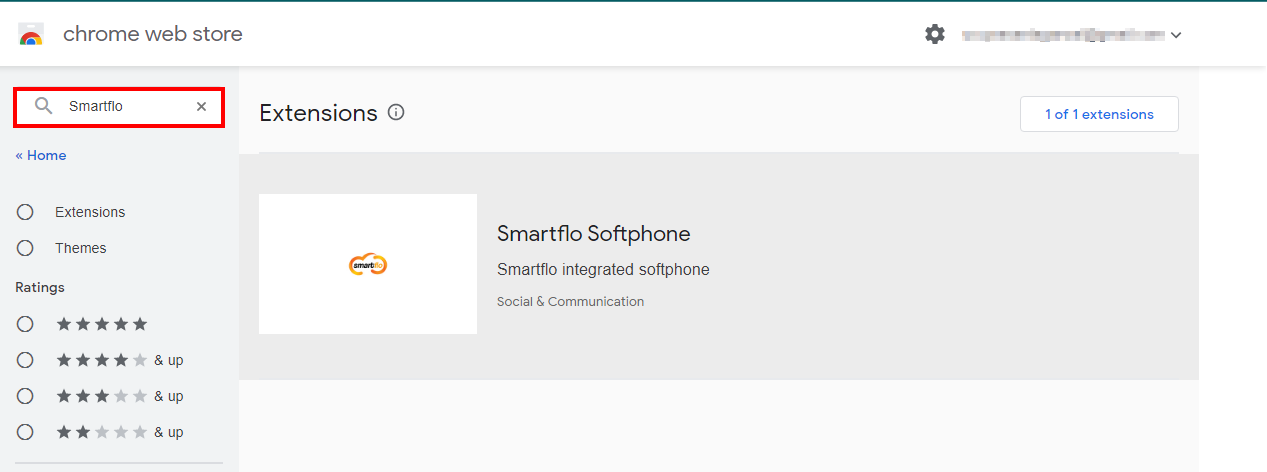
Step 1: Open Chrome Web Store, search for the Smartflo softphone and click on the Smartflo Softphone extension.
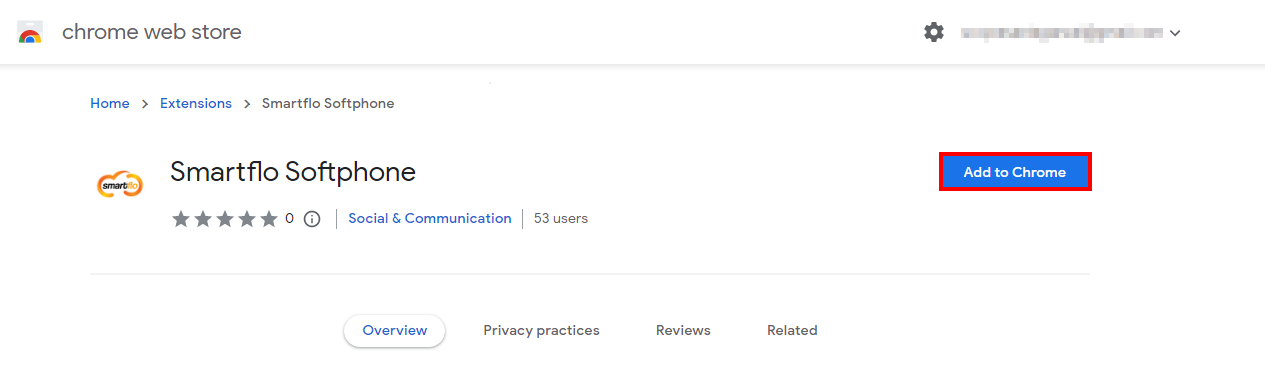
Step 2: Click Add to Chrome button.
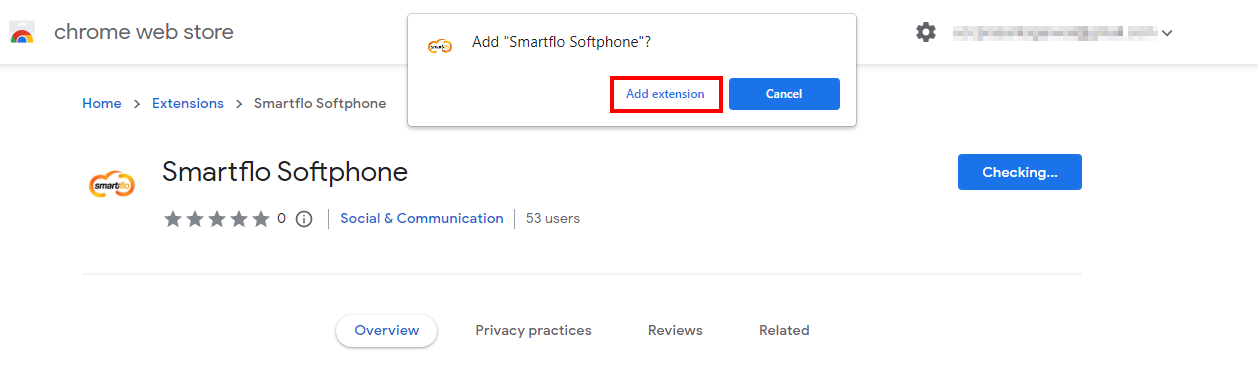
Step 3: A confirmation notification will pop up. Click on Add extension to add Smarflo softphone to Chrome.
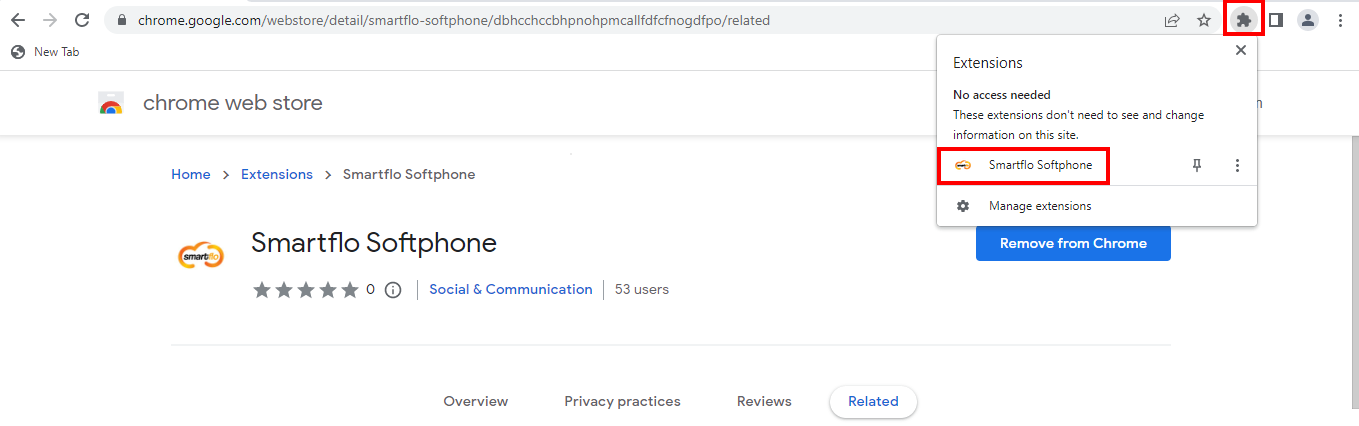
Step 4: Open Chrome, press the extension icon and click on Smartflo Softphone to open the app.
Step 5: Enter the smartflo user's Username and Password and click on Login.
Note: The Agent extension should be enabled.
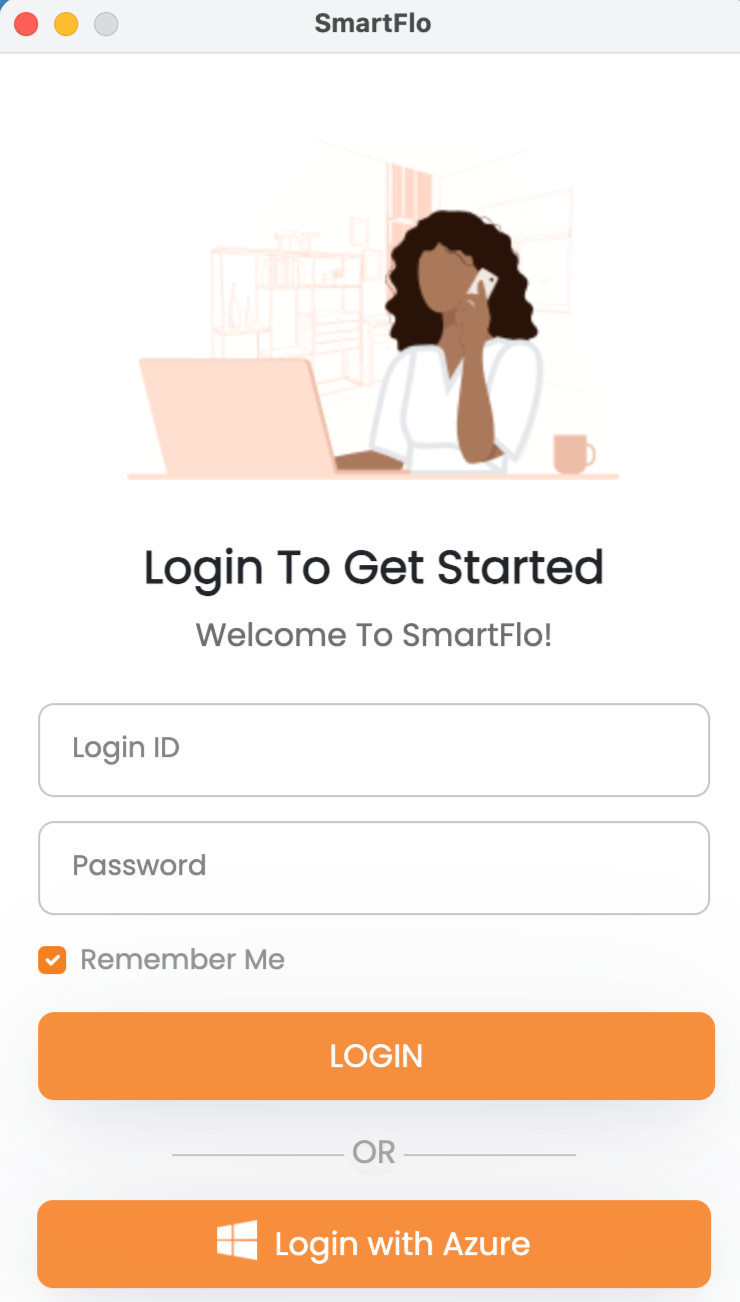
Step 6: Now you can start calling.
💻 Mac App
Follow the below steps to start using the Smartflo softphone app for Mac:
Step 1: Login to Smartflo account using your Username and Password.
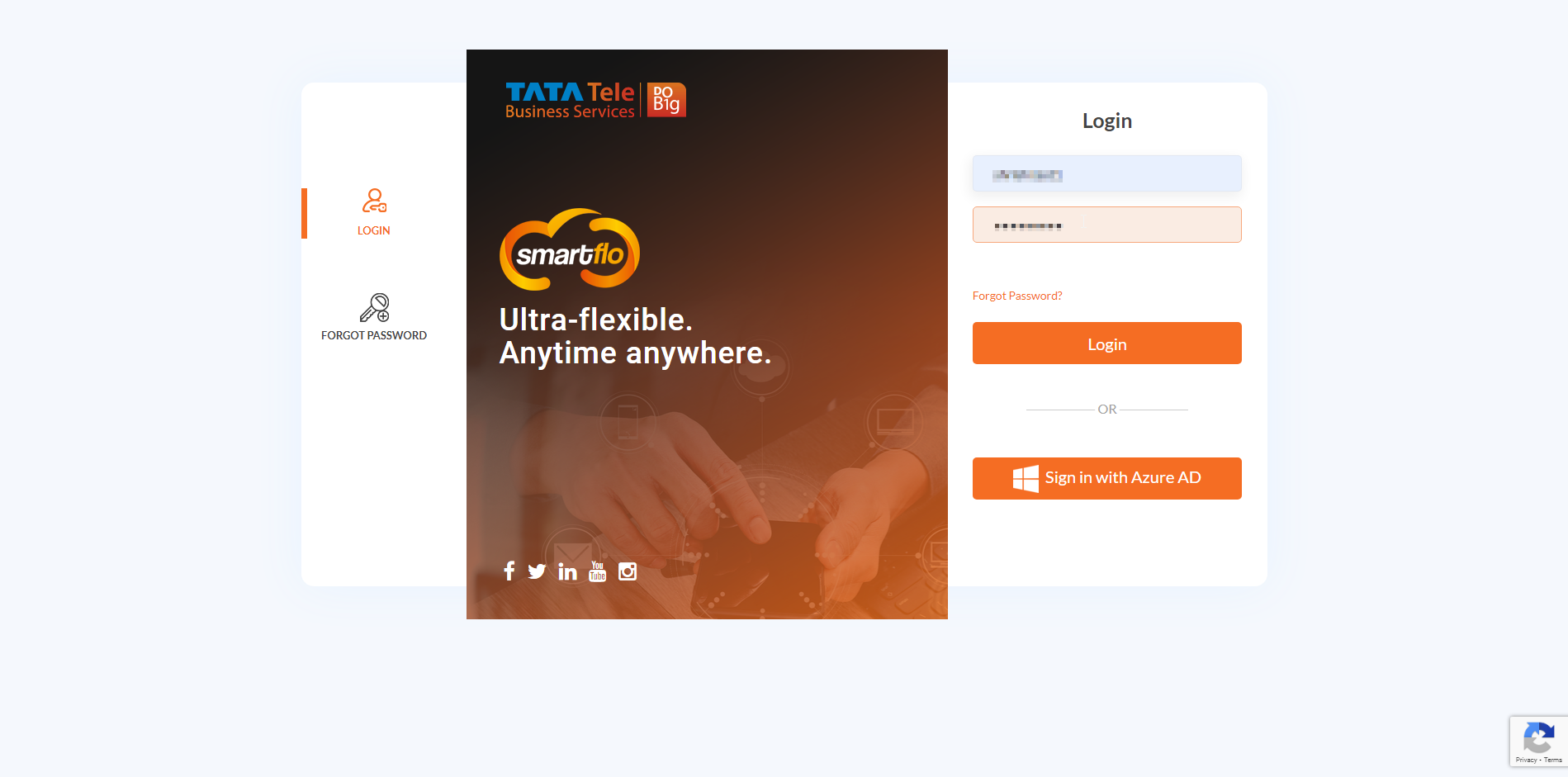
Step 2: Click on the Downloads section on the bottom left side navigation panel.
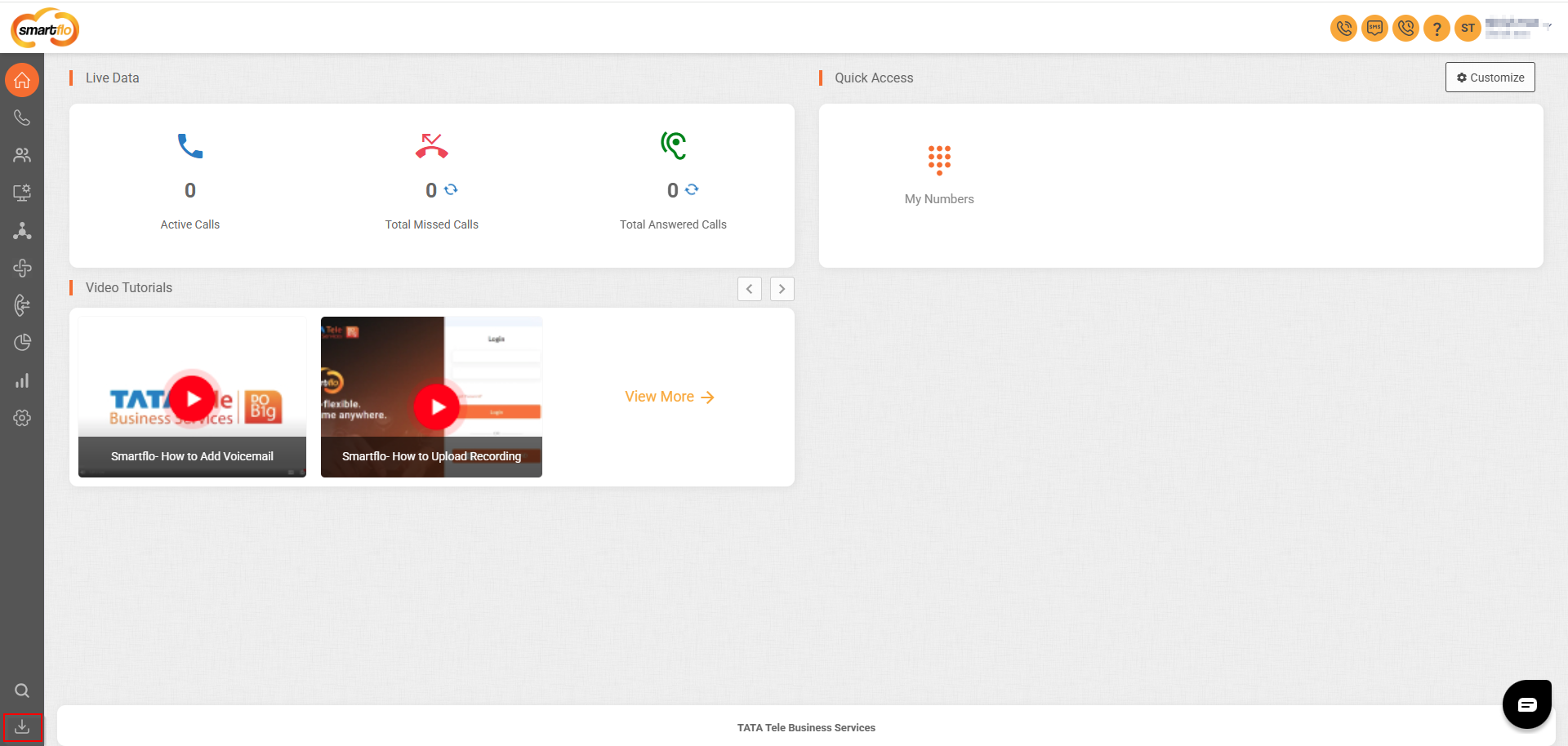
Step 3: Download and install Smartflo Softphone for Mac.
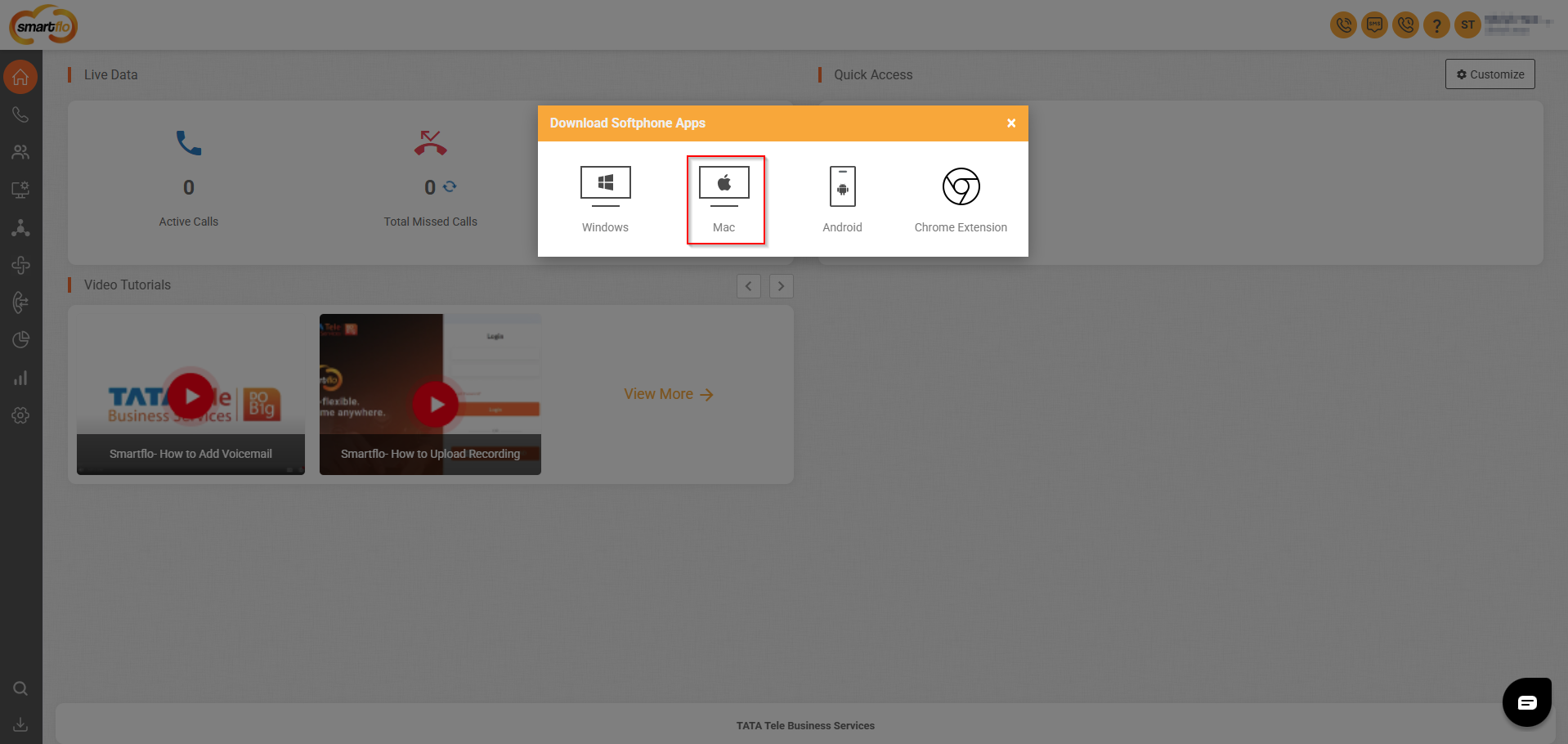
Step 4: Enter the smartflo user's Username and Password and click on Login.
Note: The Agent extension should be enabled.
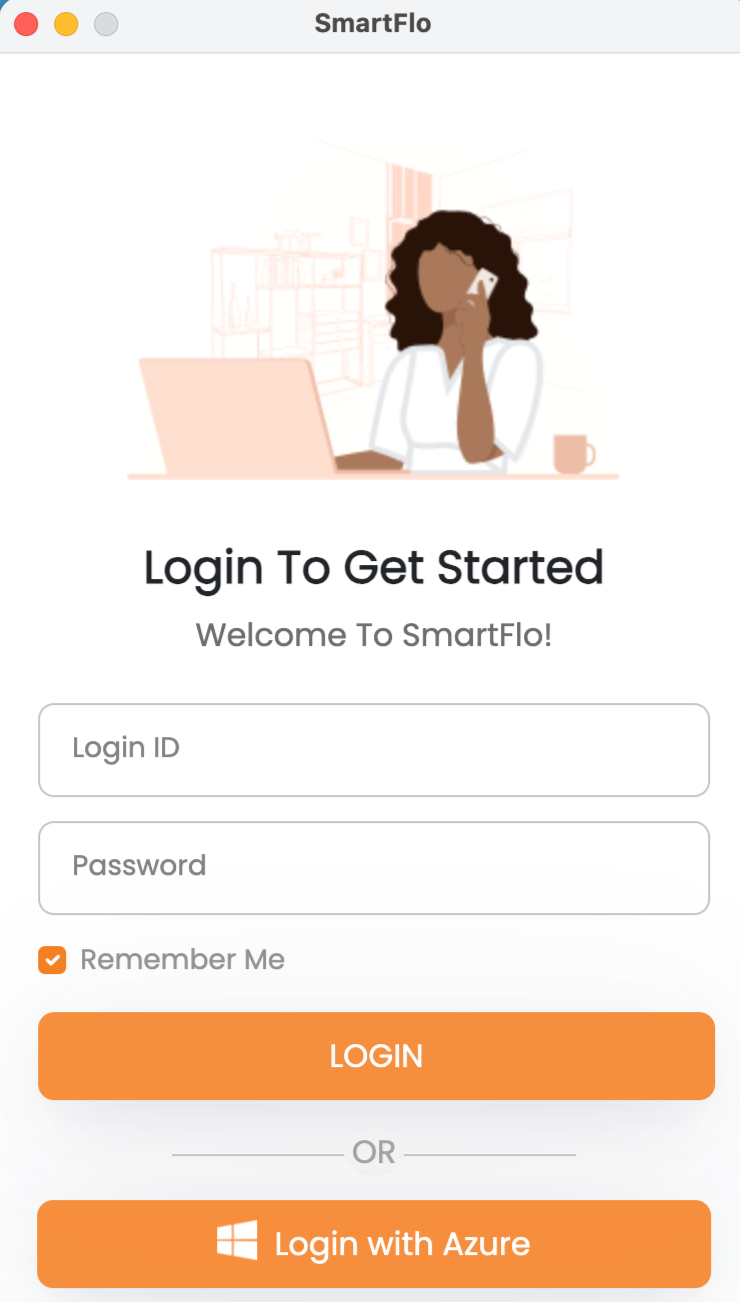
Step 5: Now you can start calling.
🖥️ Windows App
Follow the below steps to start using the Smartflo softphone app for Windows:
Step 1: Log in to your Smartflo account using your Username and Password.
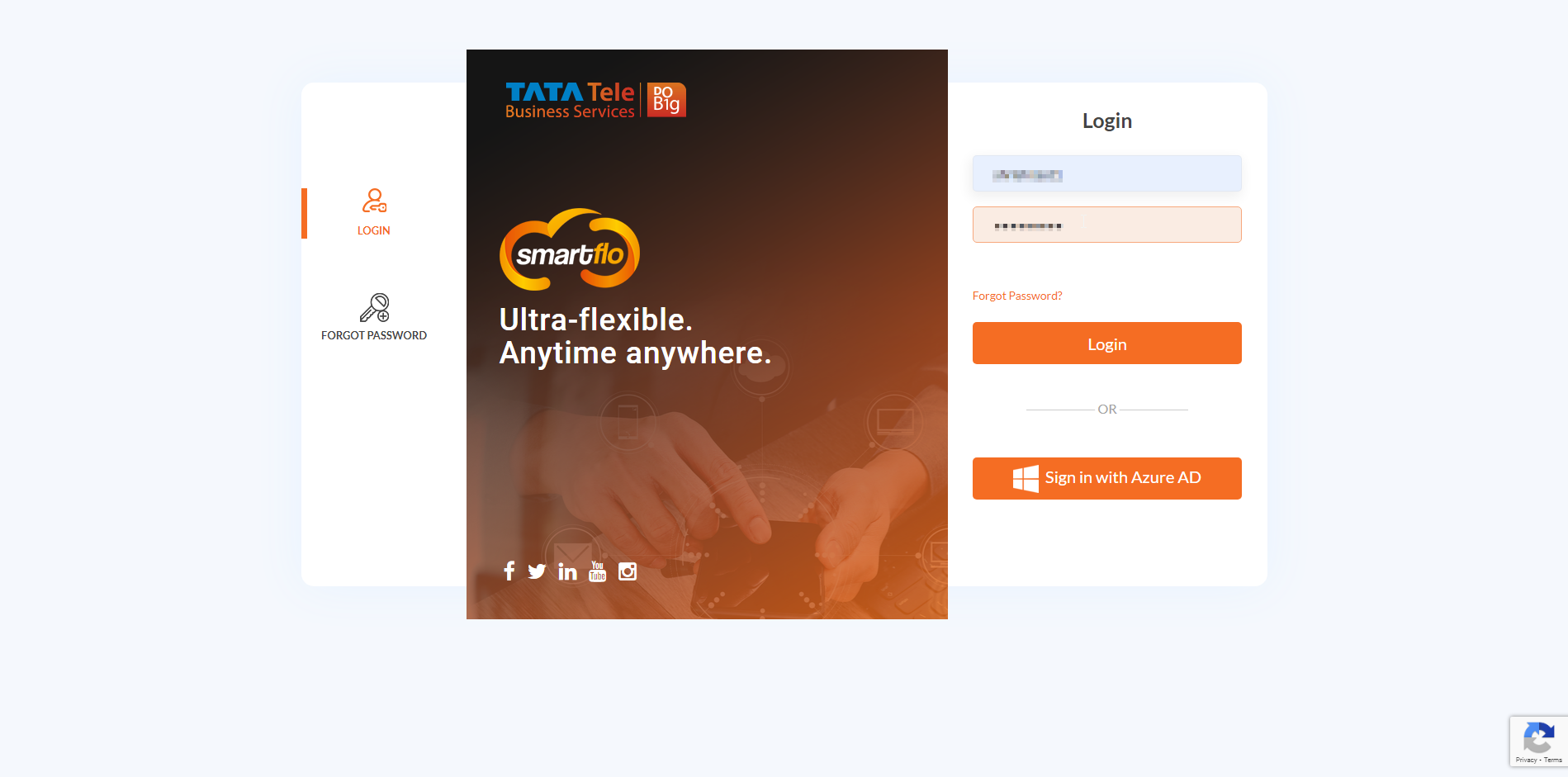
Step 2: Click on the Downloads section in the left side navigation panel.
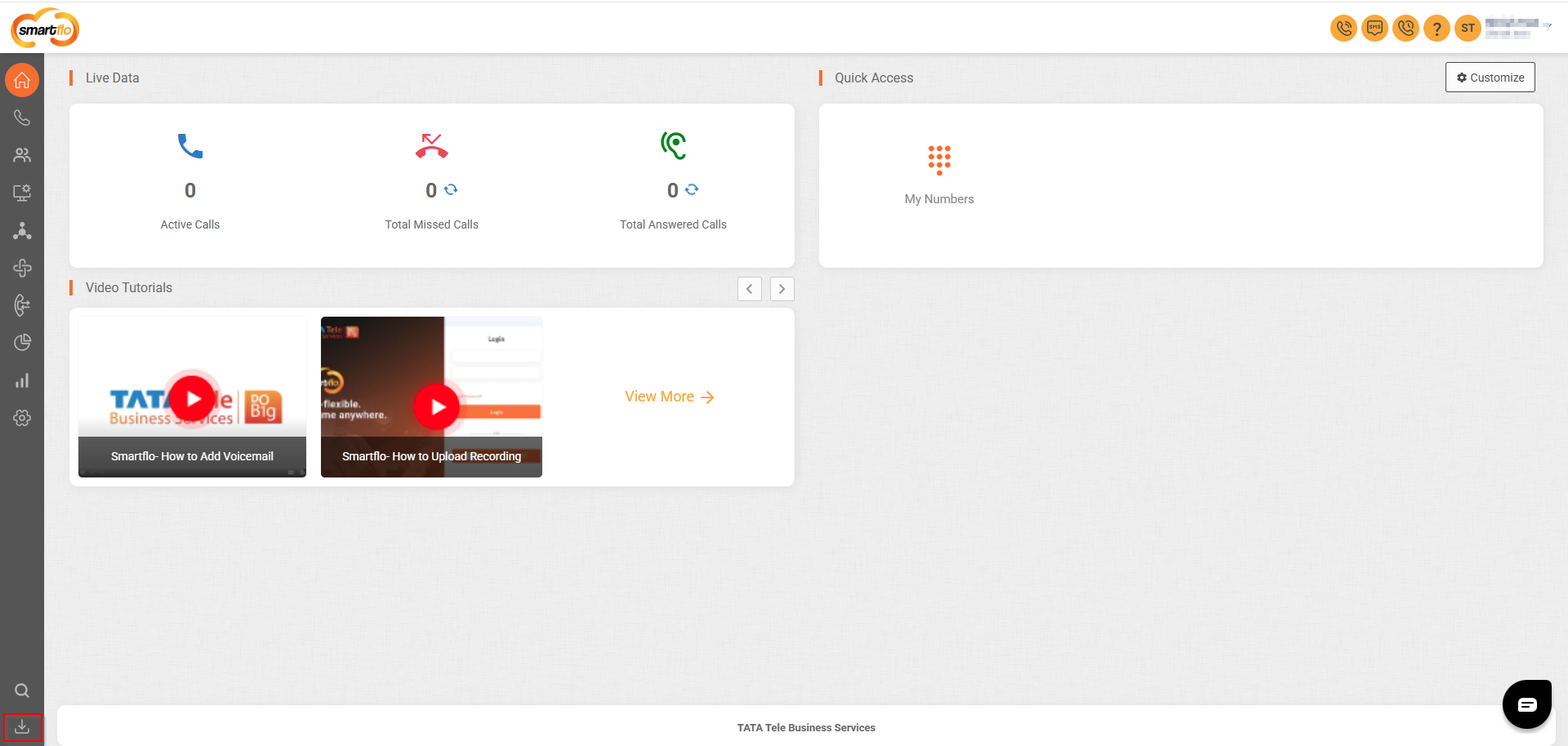
Step 3: Download and install the smartflo softphone for Windows.
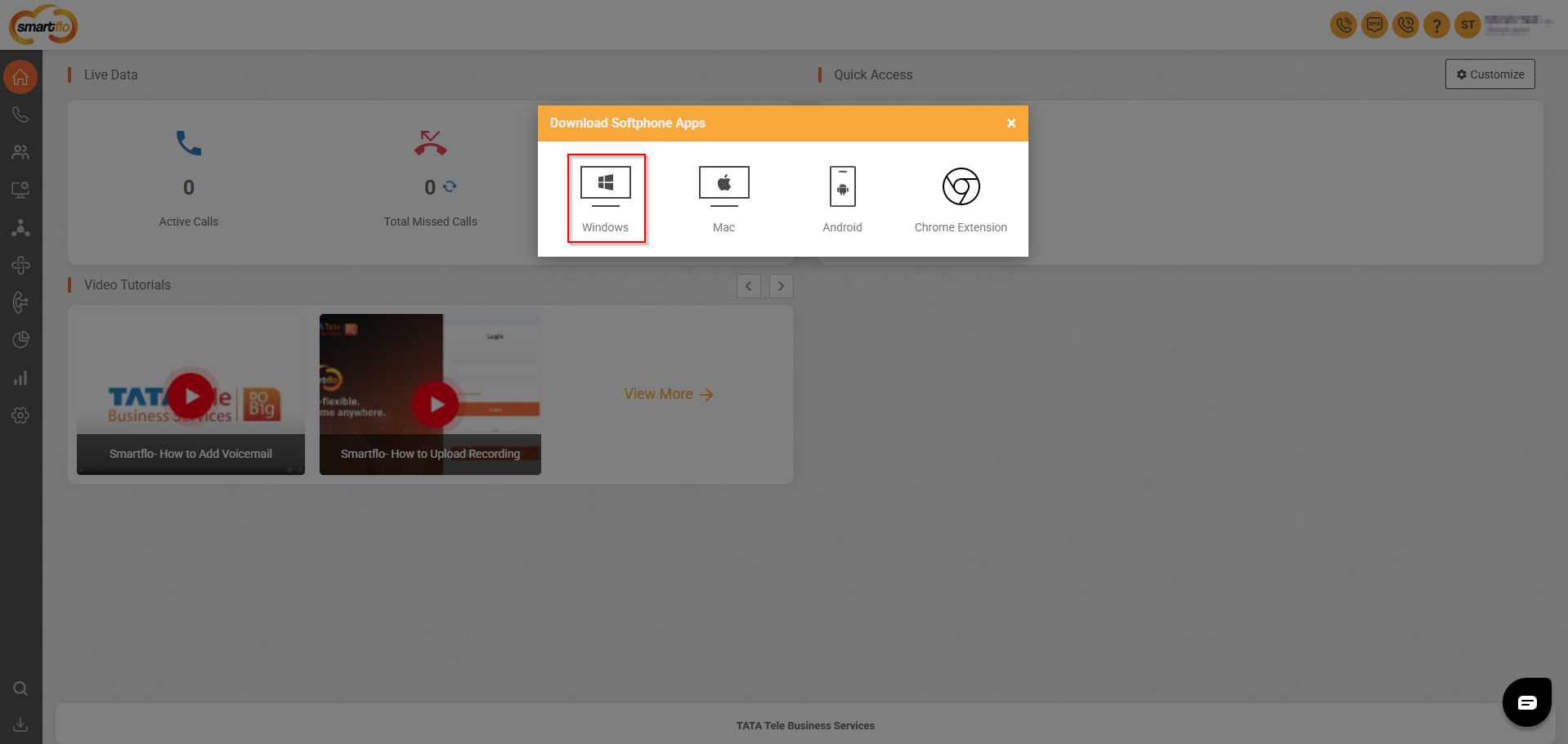
Step 4: Enter the smartflo user's Username and Password and click on Login.
Note: The Agent extension should be enabled.
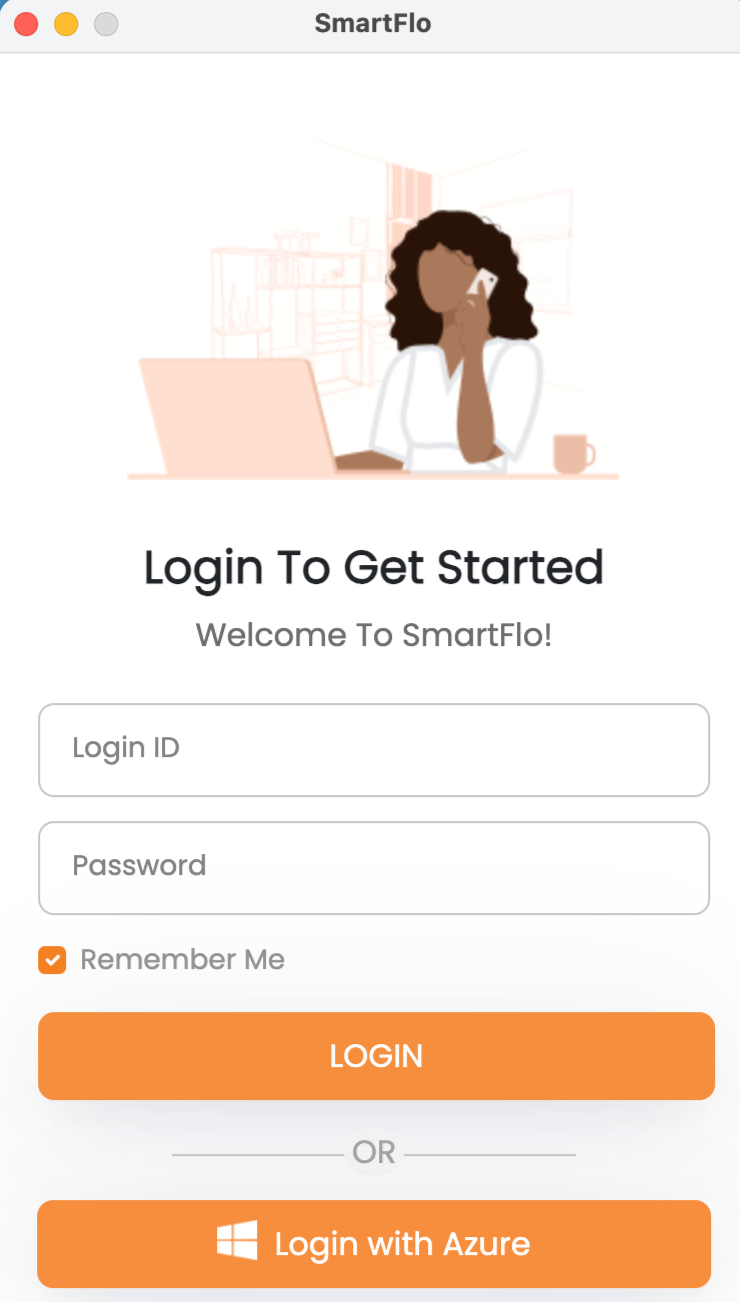
Step 5: Now you can start calling.
📱 Android App
🚧 Our apps will soon require Android 12 or above. Please update your OS for uninterrupted access.
Follow the below steps to start using the Smartflo softphone Mobile app:
Step 1: Open Android Play Store, search for the Tata Tele Smartflo Softphone and click on the Smartflo Softphone app.
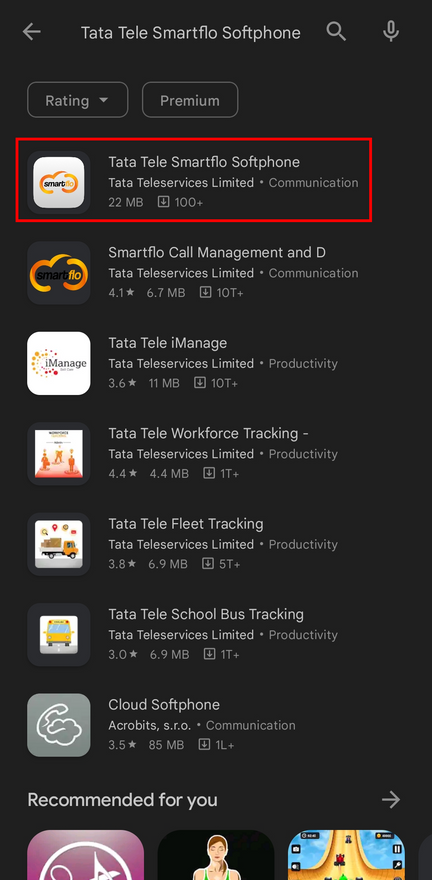
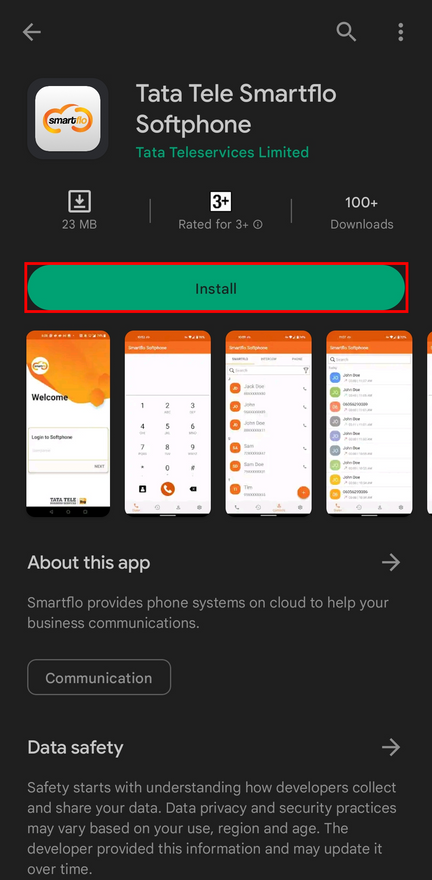
Step 2: Click Install.
Step 3: Log in to your Smartflo account using your username and click NEXT.

Step 4: Enter your account password and click SUBMIT.

Step 5: A permission notification will pop up. Click on Grant to permit access to the telephone and microphone.
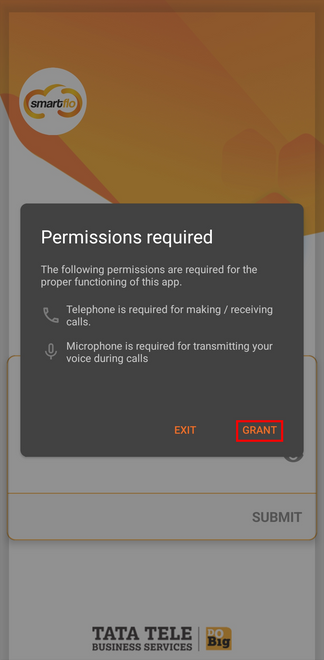
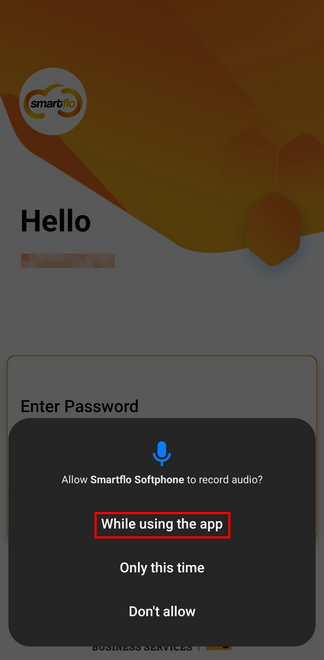
Step 6: Click on While using the app to authorize Smartflo Softphone to record audio during the call.
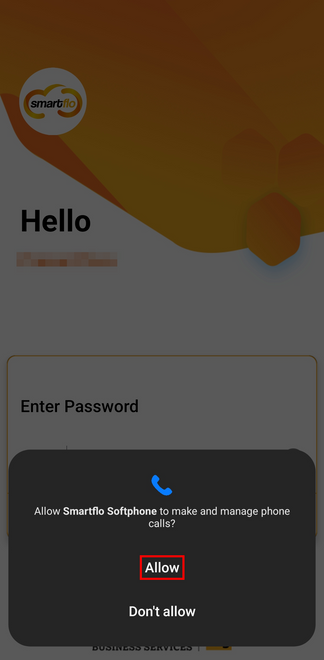
Step 7: Click on Allow to authorize Smartflo Softphone to make and manage phone calls.
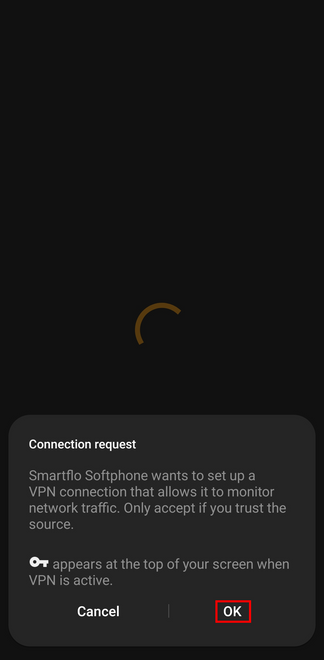
Step 8: Click on OK to allow Smartflo Softphone to set up a VPN connection.
Step 9: Now you can start calling.
📱 iOS App
🚧 Our apps will soon require iOS 18 or above. Please update your OS for uninterrupted access.
Follow the below steps to start using the Smartflo softphone Mobile app:
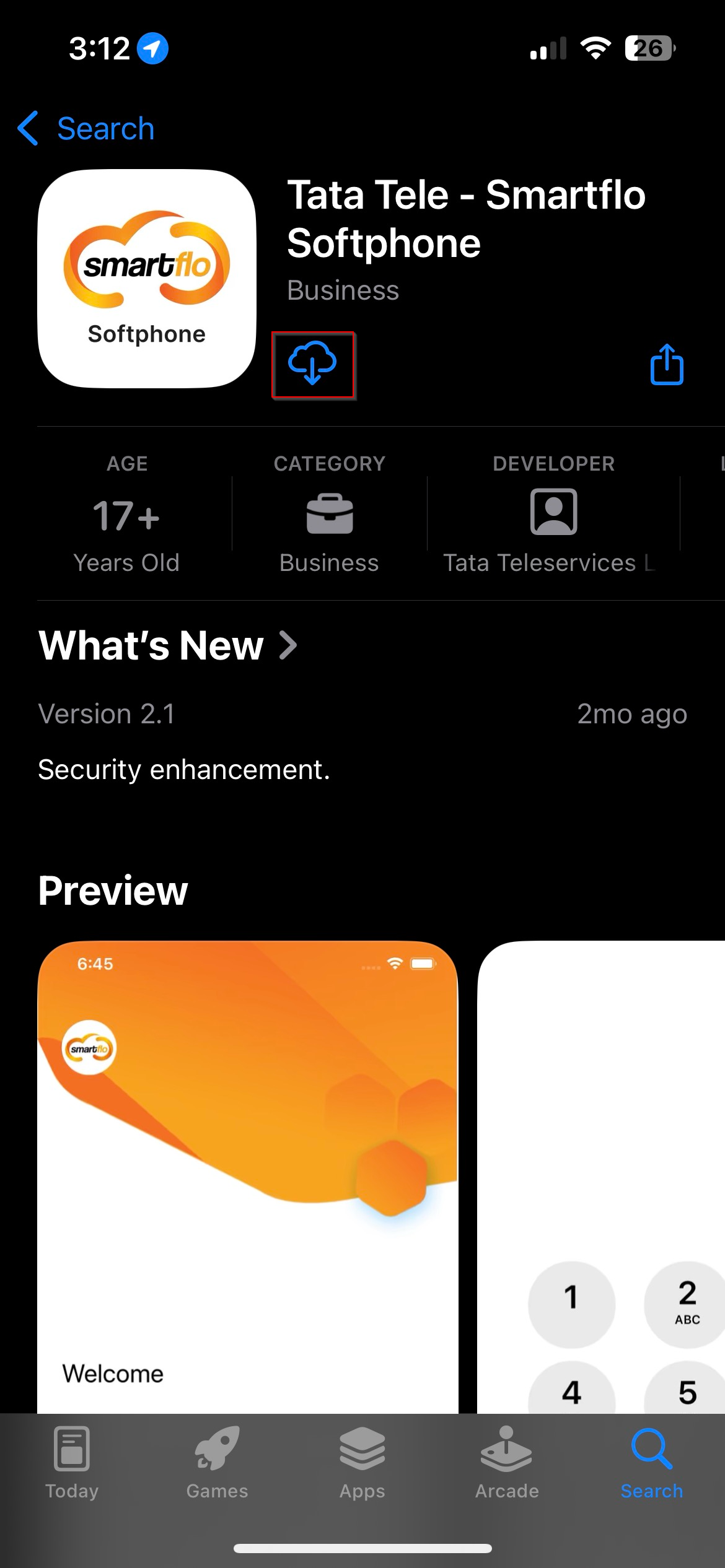
Step 1: Open Apple Store, search for the Tata Tele Smartflo Softphone and click on the Smartflo Softphone app.
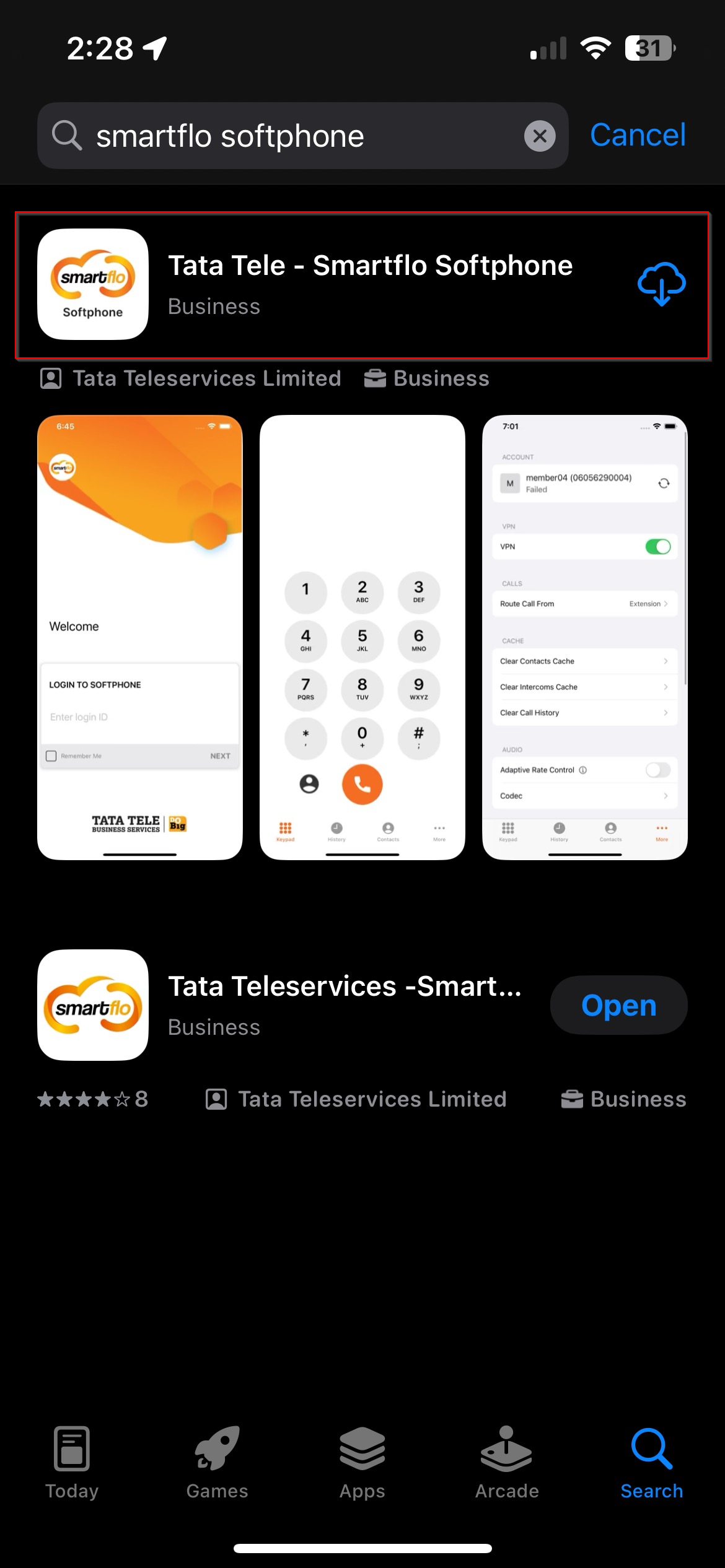
Step 2: Click Install.
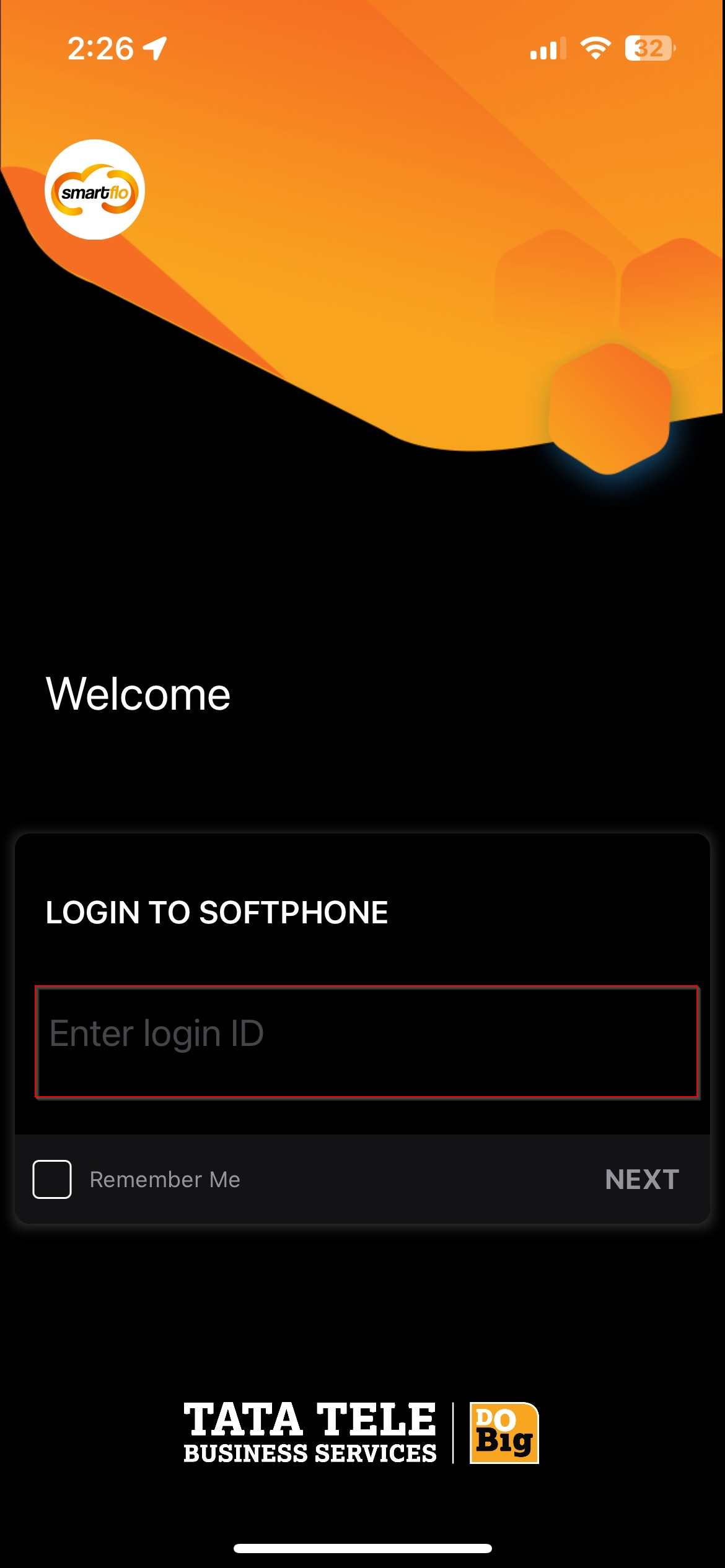
Step 3: Log in to your Smartflo account using your username and click NEXT.
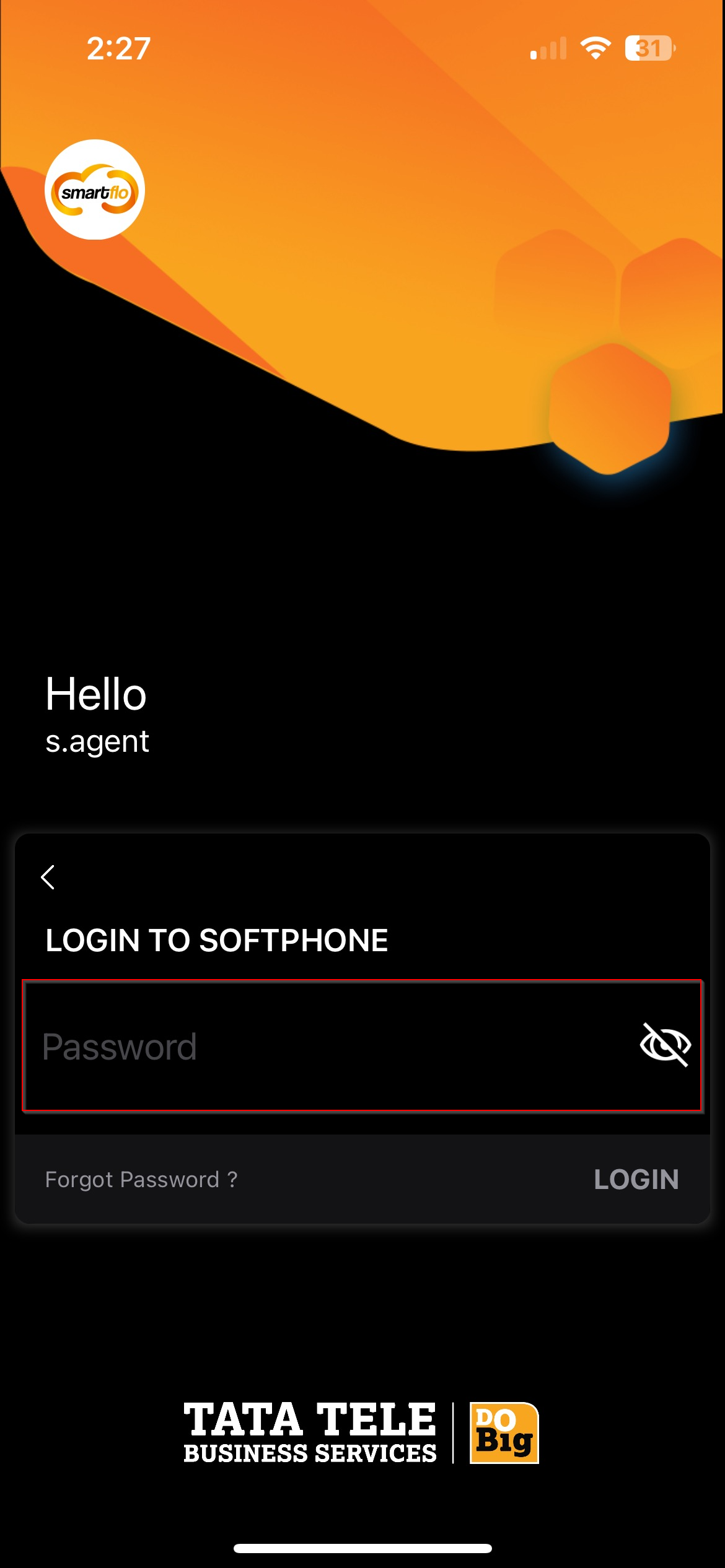
Step 4: Enter your account password and click LOGIN.
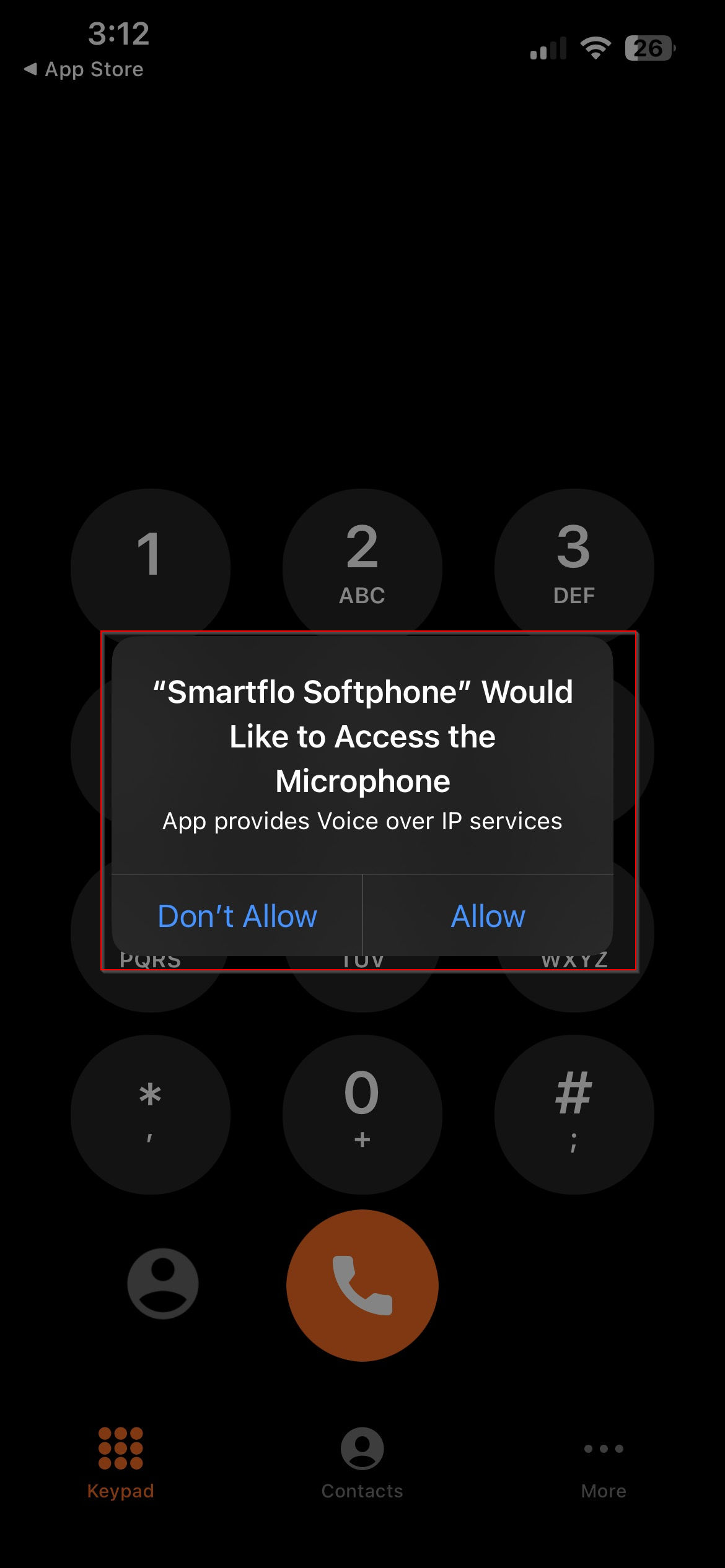
Step 5: Click on Allow to permit access to the microphone.
Step 6: Click on Allow to authorize Smartflo Softphone to send notifications.
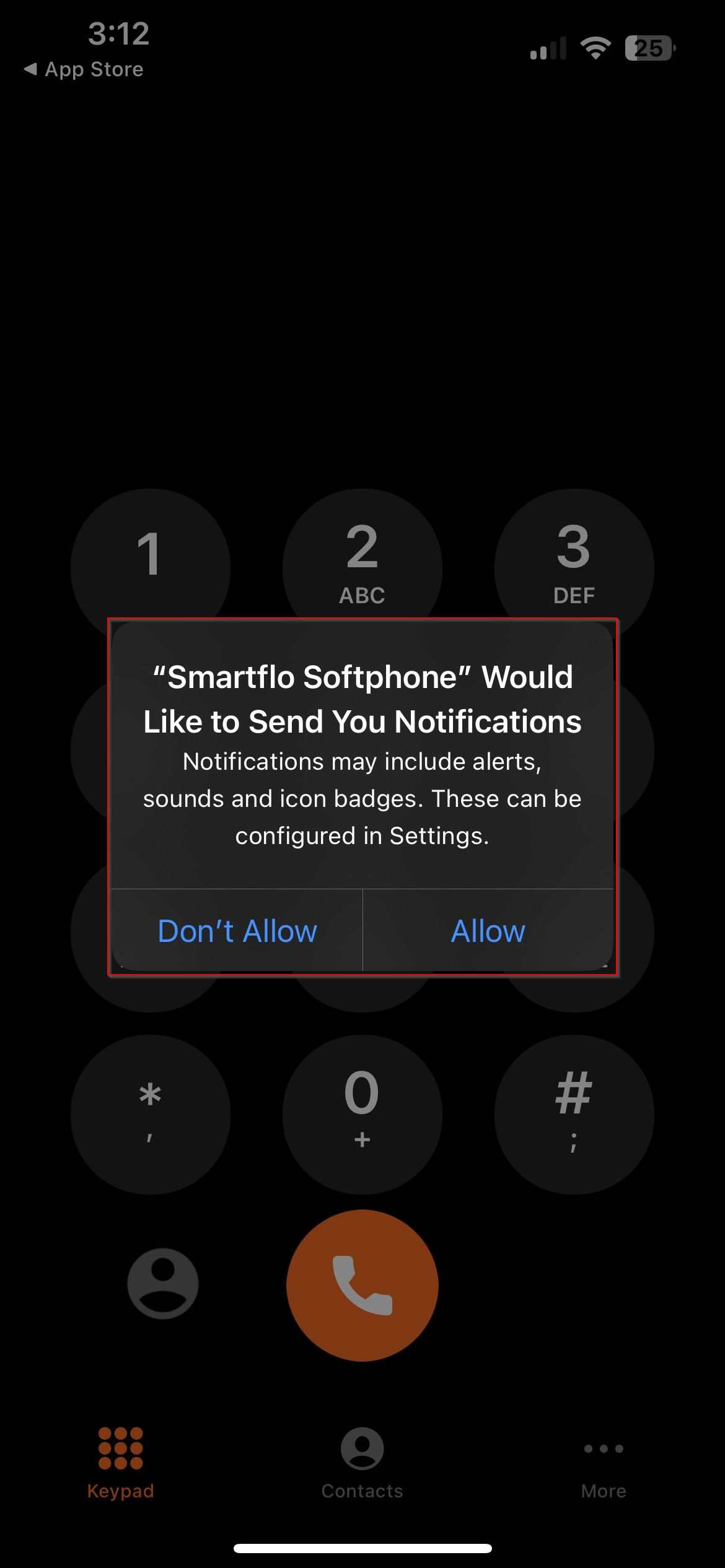
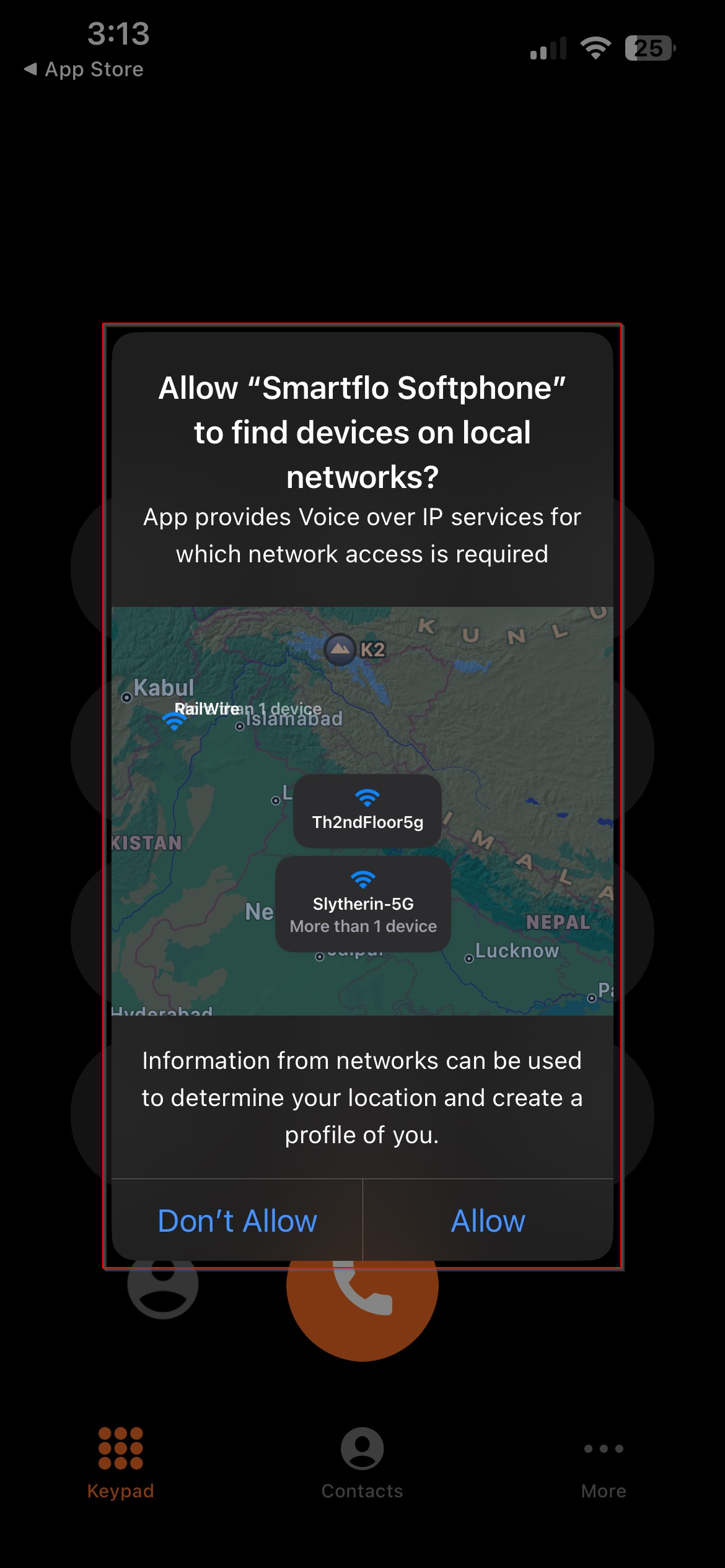
Step 7: Click on Allow to authorize Smartflo Softphone to find devices on local networks.
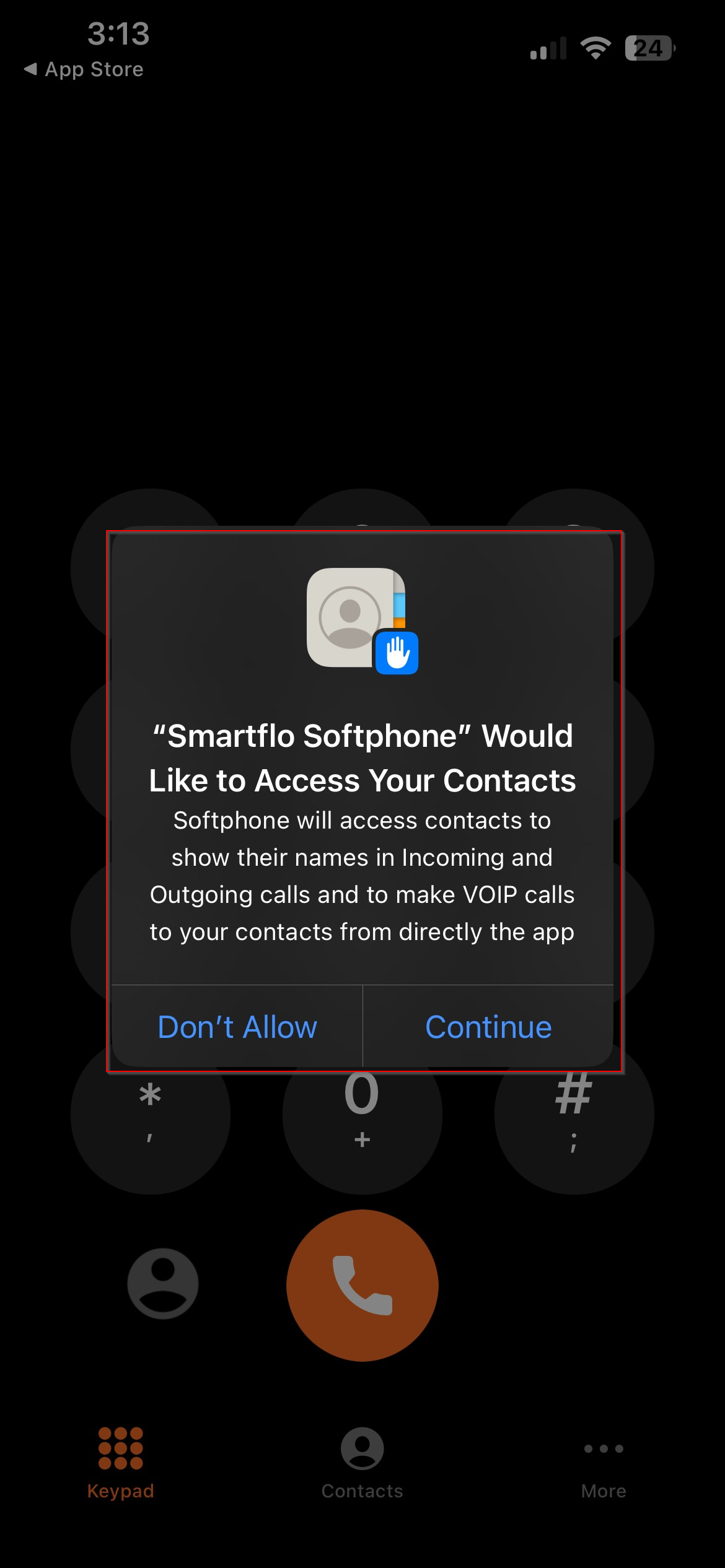
Step 8: Click on Continue to allow Smartflo Softphone to Access phone contacts.
Step 9: Now you can start calling.
Updated 4 months ago