
Create & Configure an API Key
The Click to Call Support API uses an API Key to identify the calling configuration that should be used when an API request is received.
Before you can initiate a call through the Click to Call Support API, you need to create an API Key in Smartflo. While creating the API Key, you define the Caller ID (DID) that will be used for the call and the destination where the call should be routed.
The configuration follows this structure:
API Key
   |
   ├── Caller ID (DID)
   |
   └── Destination
          |
          └── Destination Type
Once the API Key is created, you pass it in the api_key parameter of the Click to Call Support API request. Smartflo uses the configuration associated with that API Key to determine the Caller ID and destination for the call.
Note: The Click to Call Support API Key is different from the Smartflo API Token. The API Token is used for API authentication, whereas the Click to Call Support API Key identifies the calling configuration.
Step 1: Open Click to Call Support API
- Log in to your Smartflo account.
- Navigate to API Connect from the main menu.
- Select Click to Call Support API.
- On the Click to Call Support API Tokens page, click + Generate API Key.
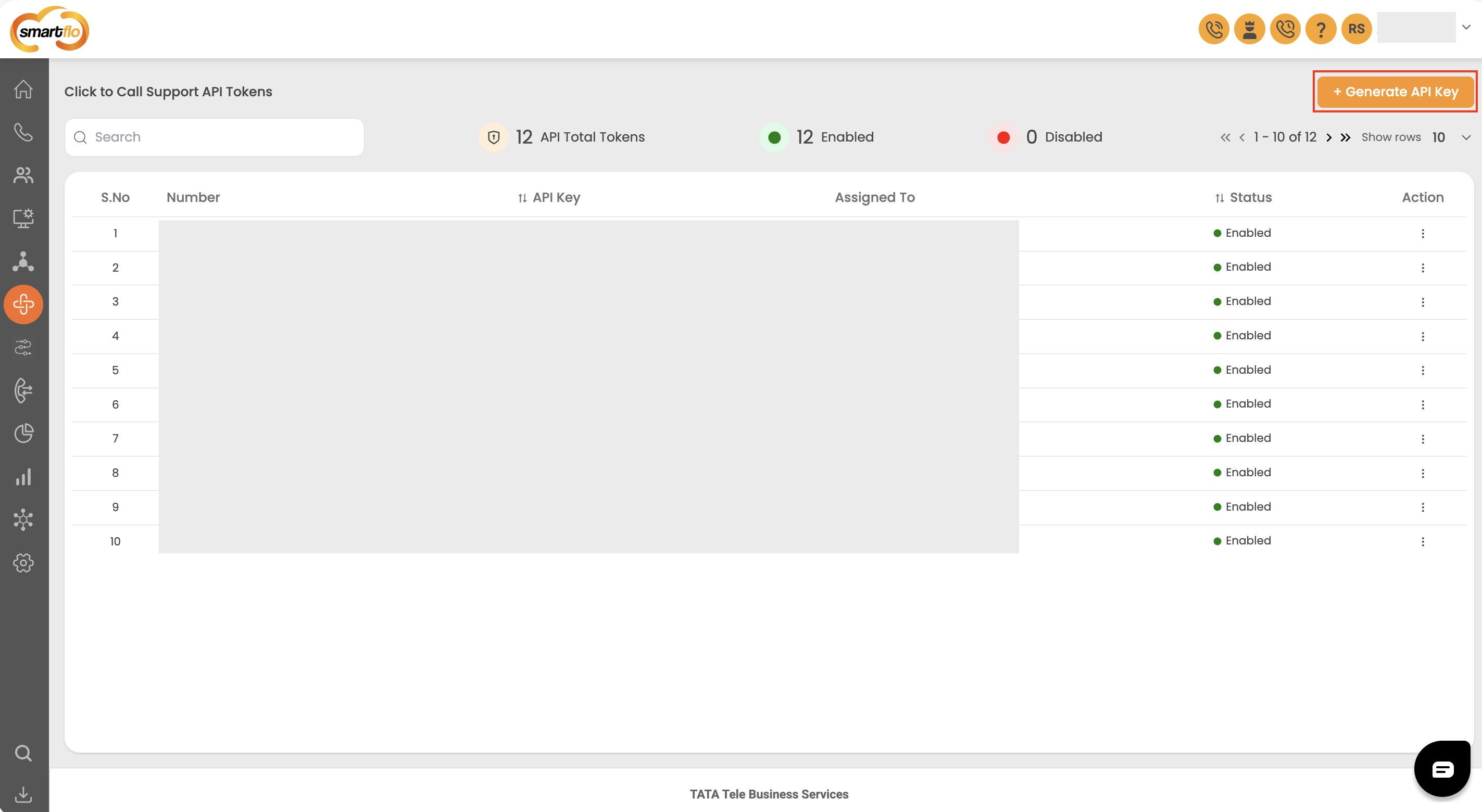
The Generate API Key page opens, where you can configure the Caller ID and destination for the API Key.
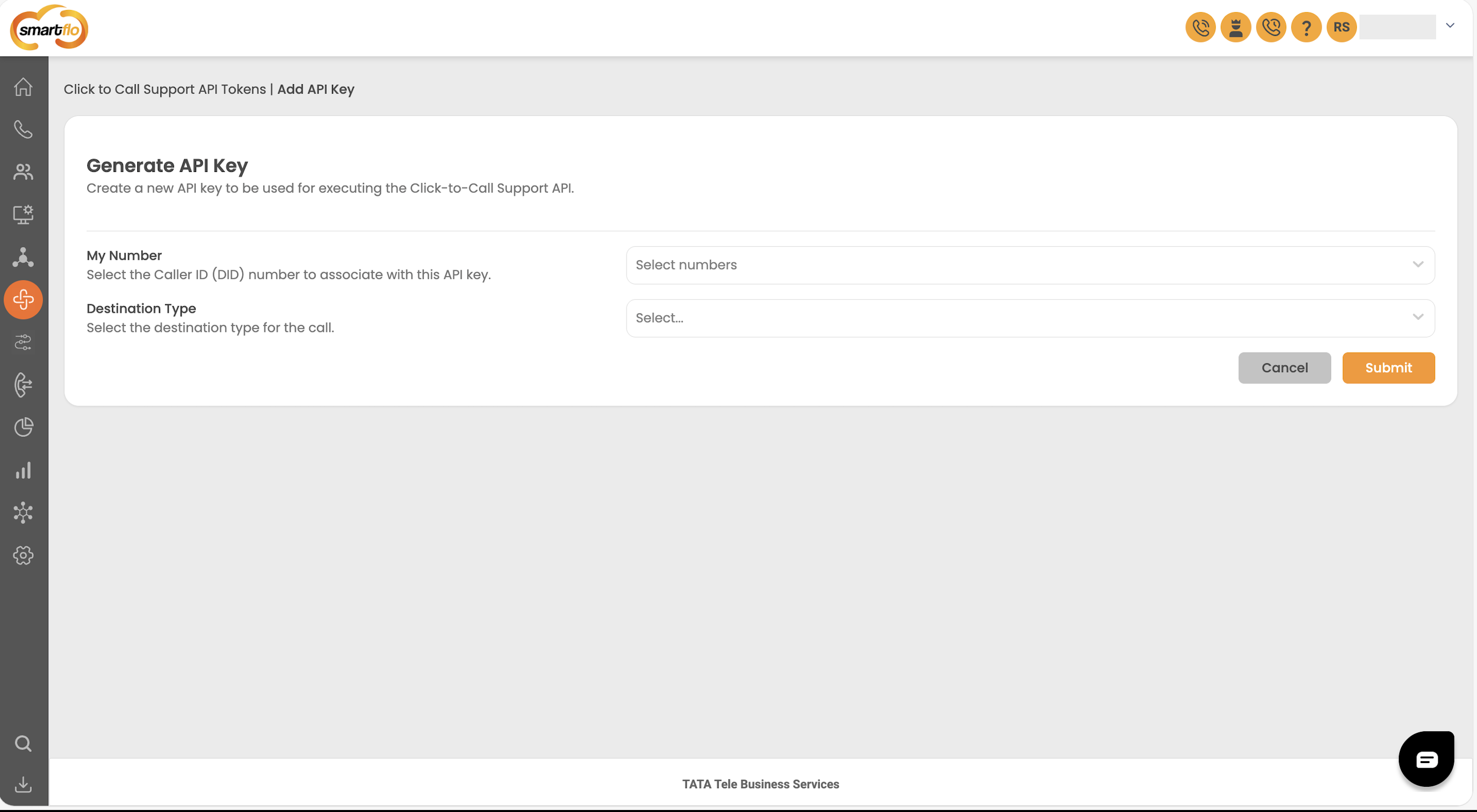
Step 2: Select the Caller ID (DID)
In the My Number field, select the Caller ID (DID) number that you want to associate with the API Key. The selected DID is associated with the API Key and is used as the Caller ID for calls initiated using this configuration. You can:
- Select a single DID number.
- Select multiple DID numbers and associate them with the same API Key.
- Use Select All to select all available DID numbers.
- Remove an individual number using the X icon.
- Use Clear All to remove all selected numbers and make a new selection.
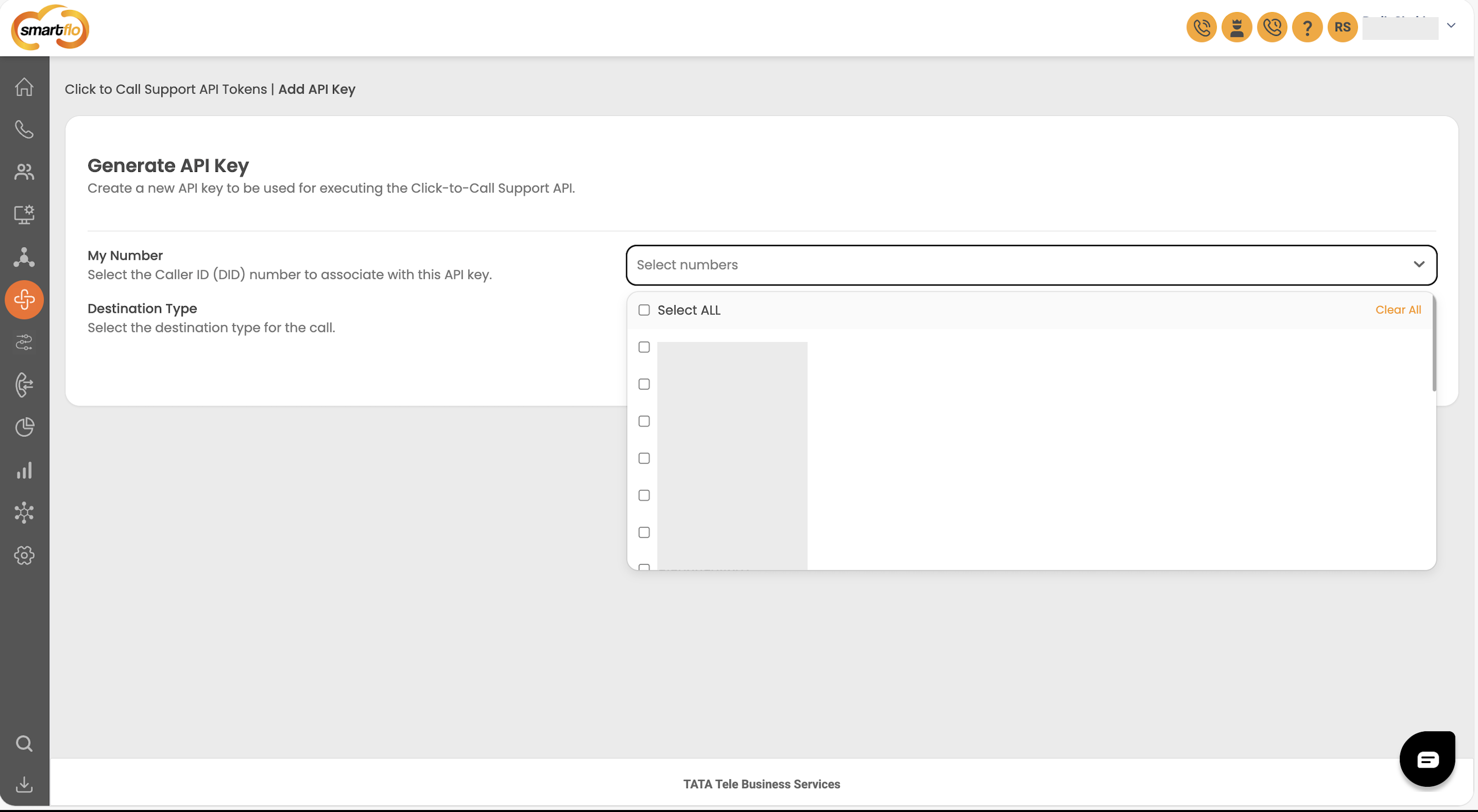
Note: Select only the DID numbers that you want to associate with this API Key. The selected numbers become part of the API Key configuration.
Step 3: Select the Destination Type
In the Destination Type field, select the type of destination where the call should be routed. The available options depend on the services and configurations enabled for your Smartflo account. The destination types may include:
- Agent
- Voicemail
- Voice Streaming
- Inbound Queue
- IVR
- Department
- Time Condition
- Auto Attendant
The Destination Type determines the type of destination that you can select in the next field. For example, selecting IVR allows you to select an IVR configured in your Smartflo account.
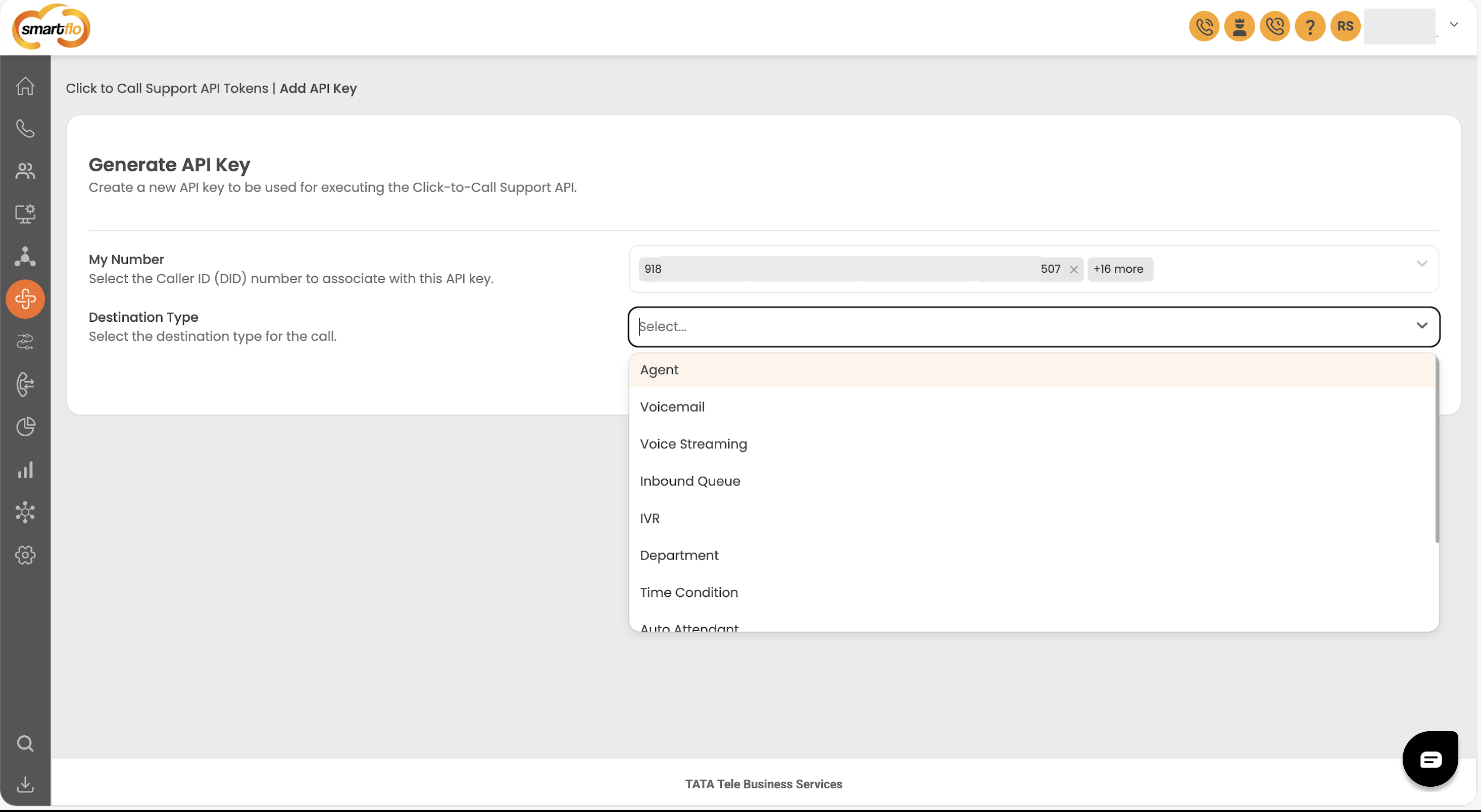
Note: The options displayed in your account may vary depending on your Smartflo configuration.
Step 4: Select the Destination
After selecting the Destination Type, the Destination field is displayed. Select the specific destination where the call should be routed. The available destinations depend on the Destination Type selected.
For example, if you select IVR as the Destination Type, the Destination field displays the available list of IVRs configured in your account. Select the required destination from the list.
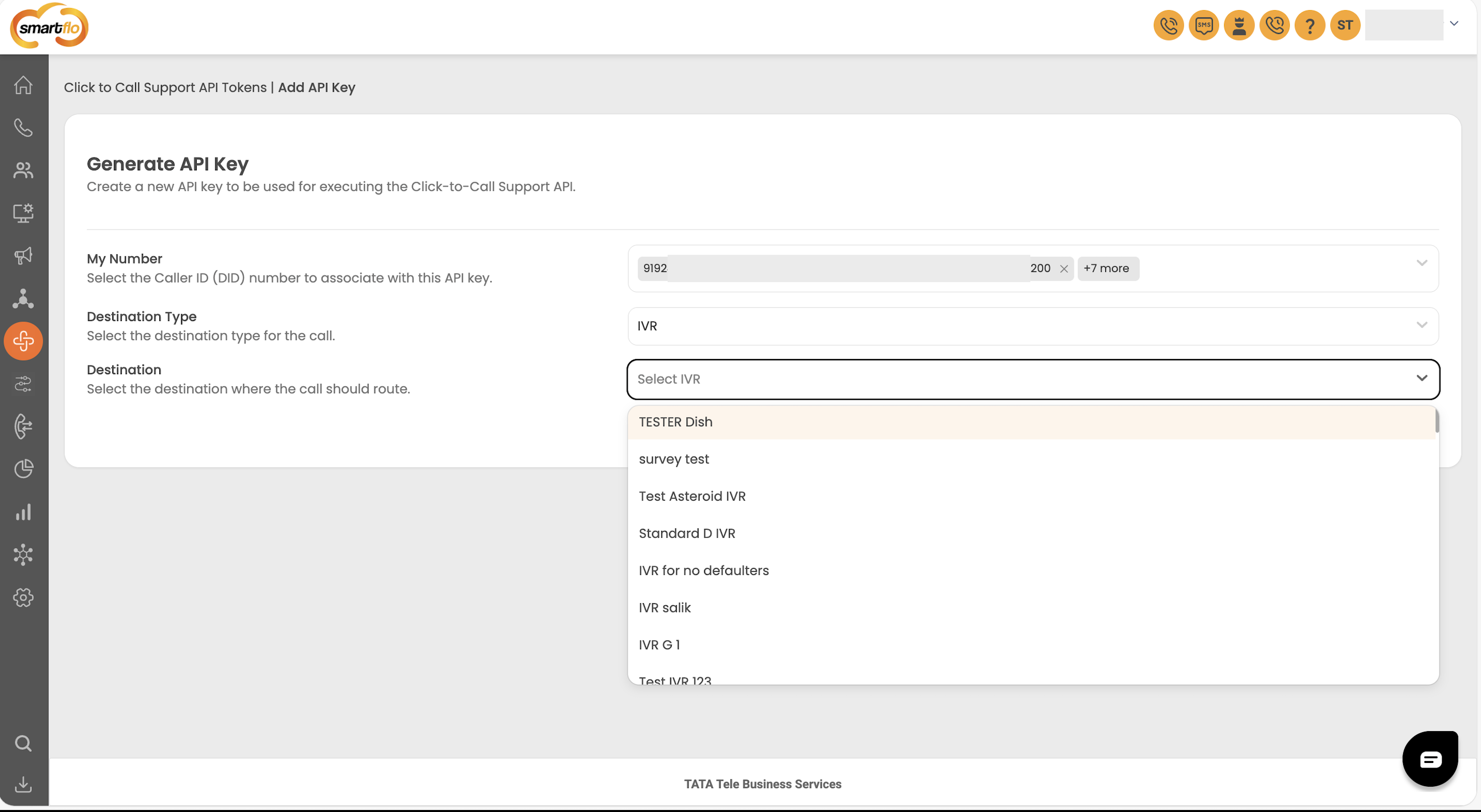
Note: The available destinations are determined by the selected Destination Type and the configurations available in your account.
Step 5: Generate the API Key
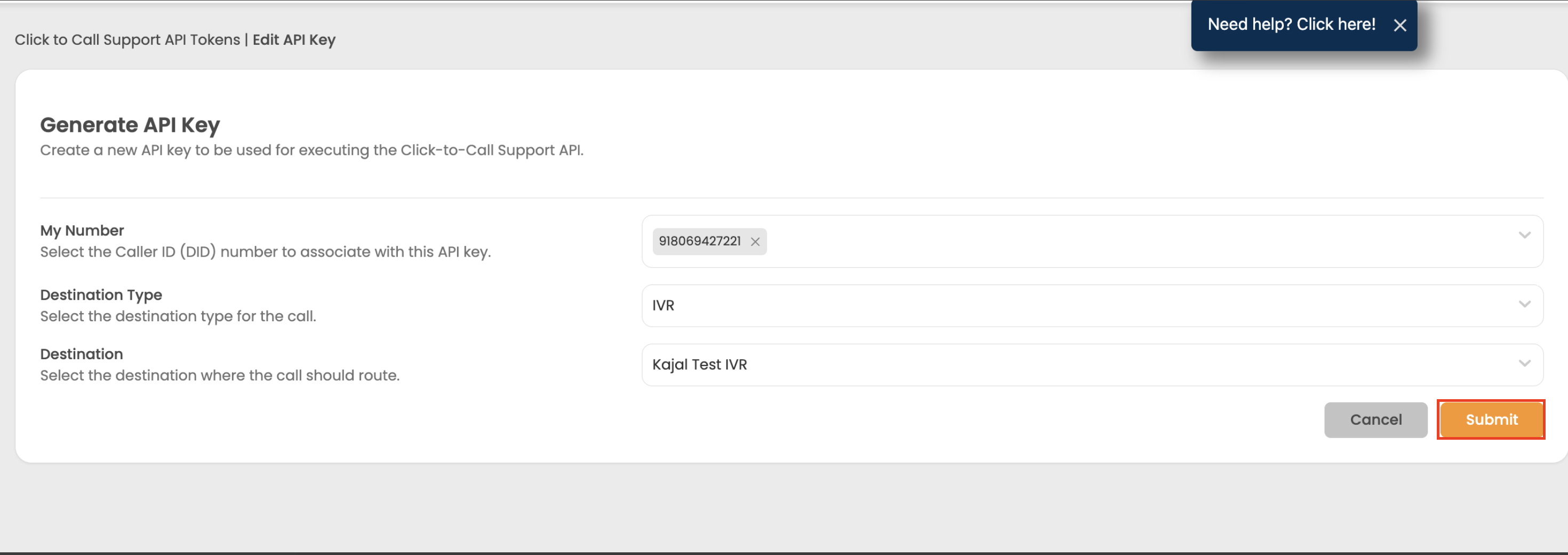
After reviewing the configuration, click Submit. Smartflo creates the API Key based on the selected Caller ID and destination configuration. The newly generated API Key is added to the Click to Call Support API Tokens list.
Once generated, the API Key can be used in your Click to Call Support API requests.
Step 6: Use the Generated API Key
The generated API Key must be passed in the api_key parameter of the Click to Call Support API request. For example:
{
  "api_key": "<YOUR_API_KEY>",
  "customer_number": "999XXXX877",
  "async": 1
}
The api_key connects the API request to the Caller ID and destination configuration created in Smartflo.
For complete information about request parameters, authentication, sample requests, responses, webhooks, and error handling, refer to the Click to Call Support API Reference.
Important: The Click to Call Support API Key is different from the Smartflo API Token. The API Token is used for API authentication, while the Click to Call Support API Key is passed in the API request payload.
Updated 2 months ago